

Double taskbar after upgrade

Hi! A few days ago the Stardock Start11 software upgraded (to version 1.56) and since then I ocassionaly get two taskbars on the screen. The one on the bottom of the screen is the real one that I can click on, the one on the top of my screen appears at random times and disappears when I hover over it and then comes back when I activate the bottom taskbar, like a whac-a-mol. So far I haven't noticed a pattern - it appears at random times, but when it does, it doesn't go away. It only disappears when I restart the machine, it happens when I'm connected to external monitors, but also when I'm not. I tried adding a screenshot of my screen, but it seems it can't be uploaded due to size limitations. This never happened before, so I'm not sure how to fix it. I tried toggling some of the settings and nothing seemed to help. Any suggestions?

382 views 13 replies
Reply #1 Top

Hello,

Sorry to hear you are having issues. Please try, uninstall Start11, reboot immediately (important), download latest version available in your account product download page: https://store.stardock.com/myaccount/products. Install it, reboot immediately again. Retest it and report back.

If the issue still appear, we need to know your Windows 10/11 full version and OS Build number. Please use Winver.exe to get this numbers.

Thank you,

Basj,

Stardock Community  Assistant.

Reply #2 Top

Hi, I am having the same problem. Did the uninstall, reboot, install, reboot and it was fine until I put the PC into sleep mode then woke it today. Now the second black taskbar is at the top of the screen again.  

Win11 24H2 OS Build 26100.8457

Reply #3 Top
Quoting hardwax909, reply 3996280

Hi, I am having the same problem. Did the uninstall, reboot, install, reboot and it was fine until I put the PC into sleep mode then woke it today. Now the second black taskbar is at the top of the screen again.  

Win11 24H2 OS Build 26100.8457

End of hardwax909's quote

Hello,

Sorry to hear you are having issues. Need to know Start11 full version number installed.

Thank you,

Basj,

Stardock Community  Assistant.

Reply #4 Top

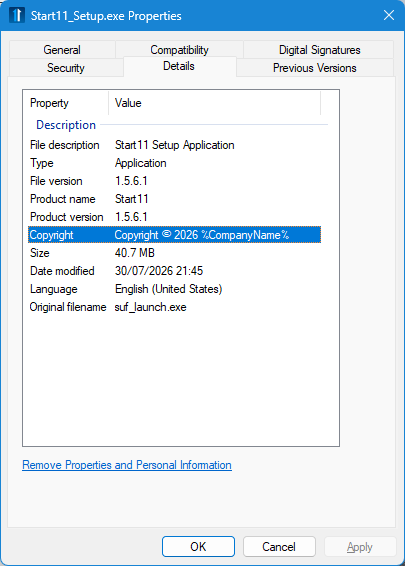
It was the latest update that downloaded itself. From the Props-Details panel in explorer 1.5.6.1


Reply #5 Top

Are you using enhanced taskbar or positioning the taskbar anywhere but the bottom?

Reply #6 Top

When the second taskbar appear, if you do restart Explorer.exe, does the second taskbar disappear?

Here how to restart Explorer.exe

  1. Press Ctrl + Shift + Esc to open Task Manager.
  2. Go to the Processes tab.
  3. Scroll down and find Windows Explorer.
  4. Right‑click it and select Restart.

This will refresh the desktop, taskbar, and Start menu without rebooting your PC.

Try it and report back.

Thank you,

Basj,

Stardock Community  Assistant

Reply #7 Top

"Let Start11 enhance the taskbar" is on. Taskbar is set to bottom, I have two monitors, start menu is Windows 10 style.

Reply #8 Top

The issue persists for me as well, after reinstall. I have the same settings as @hardwax909 and I didn't change them after the upgrade - Let Start11 enhance the taskbar is on, aligned to bottom on all screens. Has the 'restart explorer' help you with the problem? I haven't had a chance to test it yet.

Reply #9 Top
Quoting annaafek, reply 3996473

The issue persists for me as well, after reinstall. I have the same settings as @hardwax909 and I didn't change them after the upgrade - Let Start11 enhance the taskbar is on, aligned to bottom on all screens. Has the 'restart explorer' help you with the problem? I haven't had a chance to test it yet.

End of annaafek's quote

Please do test it out and report back.

Thank you,

Basj,

Stardock Community  Assistant

Reply #10 Top

Also see if it vanishes if you mouseover a taskbar button and show the thumbnail preview.

Reply #11 Top

Yes, it does - if I mouseover it, it disappears, but not the entire thing at once, rather in chunks. But comes back immediately if I activate any program from the bottom taskbar or even click on taskbar itself, then the top taskbar is back in full.

Reply #12 Top

Hi! Restart explorer in the end (key word) helped, but it made my computer freeze for a good 10-15 minutes. After I hit it, the taskbar went completely blank (black) and I couldn't activate any of the programs. I had an Excel open, but it wasn't possible to click on/select any cell inside it. So technically it helped, but I'm not sure which is worse - having to reboot the entire machine and reopen every program or don't reboot but wait longer. Is that behaviour (the freezing) expected or should I have done something differently?

Reply #13 Top

That show that something else is causing the issue. Simply restart Explorer should not make your computer freeze for 10-15 minutes. It should take just few seconds. Would like to suggest to check if your Windows system files is in good condition. 

Please try the following:

-For Win11/10 Users: Open the Start Screen, and type 'cmd'. Right-click on the search result and select 'Run as administrator' from below.

-Type: sfc /scannow

-Wait for the scan to complete (this can take several minutes)

Some help on how this looks should you need it:

https://support.microsoft.com/en-us/help/929833/use-the-system-file-checker-tool-to-repair-missing-or-corrupted-system

If the SFC finds errors, but cannot fix them, please also run the following command in the same command prompt window:

dism.exe /online /Cleanup-Image /RestoreHealth

Some help on how this looks should you need it:

https://www.windowscentral.com/how-use-dism-command-line-utility-repair-windows-10-image

The above command should assist with replacing any damaged or problematic system files. Please note, however, since it may require restoring certain files, this process can take some time and you will need to be patient until it has completed.

Please let me know whether this resolves your problem or if you have any additional questions.


Thank you,

Basj,

Stardock Community  Assistant