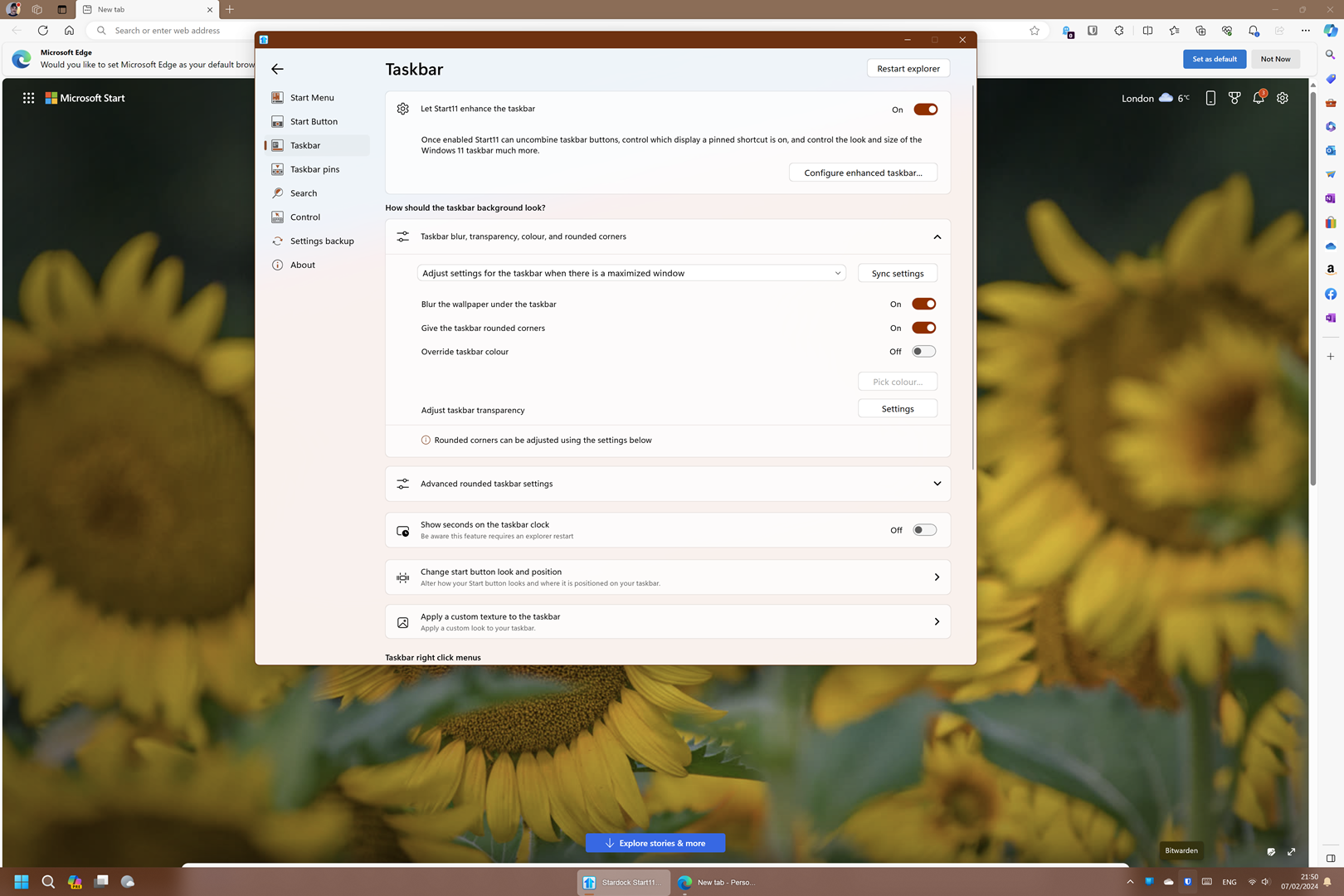
Start11 v 2.05 rounded taskbar not working
How to set up rounded conners
Hello there,
I don't manage to understand how rounded taskbar works as it seems not responding to the settings options on Windows 11 23H2
Stardock will be closed for the week starting on Monday, June 29th and we will be returning on Monday, July 6th. We will be monitoring support tickets and forums during this time but expect delays in responses during this time.
How to set up rounded conners
Hello there,
I don't manage to understand how rounded taskbar works as it seems not responding to the settings options on Windows 11 23H2
Hello,
Sorry to hear you are having issues. Need to know your Windows 11 full version number. Use Winver.exe to get it.
Thanks
Basj,
Stardock Community Assistant.
What happens if you set rounded for when Windows are maximised too?
Hello Basj,
The Windows build is 22631.3085
What about this one? What is your setting look like for "Windows are maximized"?
Thank you,
Basj,
Stardock Community Assistant
On maximize windows happens exactly the same.
Would like to suggest, first, uninstall Start11, reboot immediately after uninstall finished. Re-download latest version available on your product account page: https://store.stardock.com/myaccount/products . Install it, reboot immediately again. Retest it and report back.
Thank you,
Basj,
Stardock Community Assistant
I just did, also delete all settings, after uninstall, reboot, install, reboot neither works.
Next, please try cleanboot, just to iron out if there is something else is blocking Start11v2 from doing it things.
https://forums.stardock.com/505872/start11-support-faq#cleanboot
Thank you,
Basj,
Stardock Community Assistant
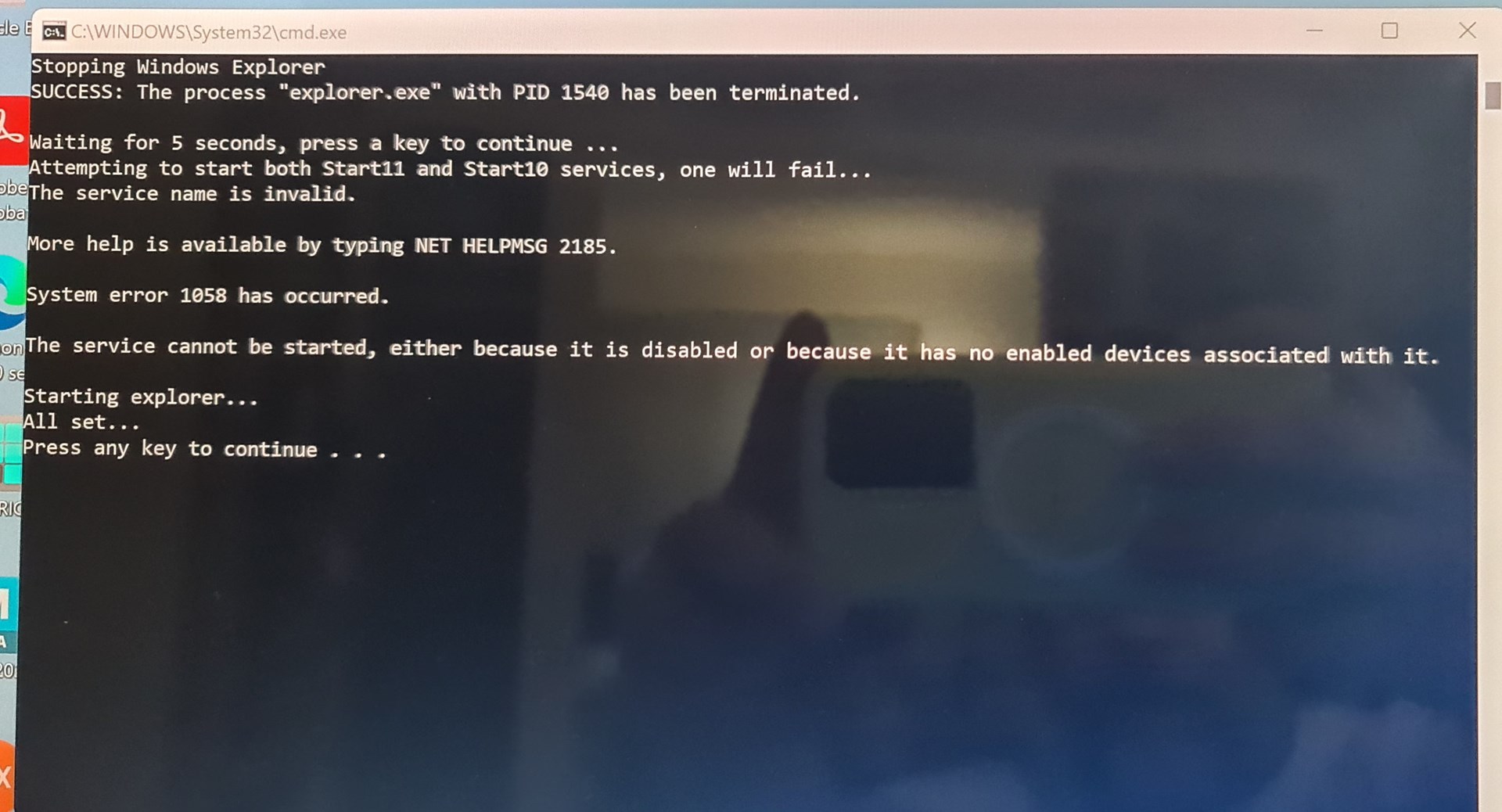
I follow the steps.
After running the app. I enable de services again a restart as administrator where rounded taskbar is working. Then I swap users, and no longer working.

That show that the user account is somehow corrupted. Try these steps and see if it help.
-For Win8/10/11 Users: Open the Start Screen, and type 'cmd'. Right-click on the search result and select 'Run as administrator' from below.
-For 7 Users: click Start, in the start search field type 'cmd'. Right-click on the search result and select 'Run as administrator'.
-Type: sfc /scannow
-Wait for the scan to complete (this can take several minutes)
Some help on how this looks should you need it:
If the SFC finds errors, but cannot fix them, please also run the following command in the same command prompt window:
dism.exe /online /Cleanup-Image /RestoreHealth
Some help on how this looks should you need it:
https://www.windowscentral.com/how-use-dism-command-line-utility-repair-windows-10-image
The above command should assist with replacing any damaged or problematic system files. Please note, however, since it may require restoring certain files, this process can take some time and you will need to be patient until it has completed.
Please let me know whether this resolves your problem or if you have any additional questions.
Thank you,
Basj,
Stardock Community Assistant

Welcome Guest! Please take the time to register with us.