Office icons not appearing correctly

I downloaded Stardock for Windows 1.2 yesterday.

Immediately after restarting, the Office icons on the taskbar appeared as certificates instead of the correct icons.

How do I fix this?


3,143 views 6 replies
Reply #1 Top

Well thats certainly not normal.

If you first rearrange the icons on the taskbar (important) are you able to then open regedit and go to HKEY_CURRENT_USER\Software\Stardock\Start8\Start8.ini\Start8\Taskbar and send us a screenshot of what it shows on the right hand side?

Also what version of Office is this?

Reply #2 Top

I have Office 365 with automatic update.

I was unable to take a print screen while in the register. The best I can do.
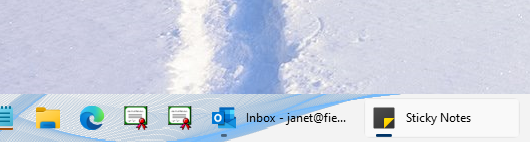
My desktop bad icons


Key Name: HKEY_CURRENT_USER\Software\Stardock\Start8\Start8.ini\Start8\Taskbar

Class Name: <NO CLASS>

Last Write Time: 4/7/2022 - 3:59 PM

Value 0

Name: 308046B0AF4A39CB

Type: REG_SZ

Data: 0

Value 1

Name: Microsoft.WindowsNotepad_8wekyb3d8bbwe!App

Type: REG_SZ

Data: 1

Value 2

Name: Microsoft.Windows.Explorer

Type: REG_SZ

Data: 2

Value 3

Name: MSEdge

Type: REG_SZ

Data: 3

Value 4

Name: Microsoft.Office.Desktop_8wekyb3d8bbwe!Excel

Type: REG_SZ

Data: 4

Value 5

Name: Microsoft.Office.Desktop_8wekyb3d8bbwe!Word

Type: REG_SZ

Data: 5

Value 6

Name: Microsoft.Office.Desktop_8wekyb3d8bbwe!Outlook

Type: REG_SZ

Data: 6

Reply #4 Top

We made a small change to icon loading in v1.21 beta.

Are you able to try the beta update to see if it helps?

Reply #5 Top

The beta fixed the icons on the taskbar.

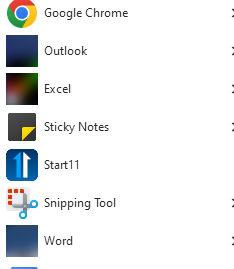
But, now the icons on the Stardock Windows 7 start menu are missing.


This is not a big deal for me as I use the icons on the taskbar to access the programs.

But, it is an issue.


Reply #6 Top

I am having the same issue as the OP in this post. It also happens on the task bar and it only occurs when Start11 is active. I've seen several posts about this problem when using Windows and Office365 but at least on my system the problem only happens when i'm running Start11.