hollerjoe hollerjoe

Stopped working after last Windows 10 update

Stopped working after last Windows 10 update

My primary computer no longer shows Multiplicity running in the task bar. I start the program manually by clicking on the app and running in administrator mode but nothing works. Both primary and secondary are connected via Ethernet cable and I have also tried with both Wifi and Ethernet on. Also the opposite. I don't think the program is loading on my primary, it does show active on the secondary. I've been using this program for years and it just stopped working completely after the last Windows 10 update a few weeks ago.

I've downloaded and installed in administrator mode the latest version.

Help!
15,034 views 32 replies
Reply #26 Top

We are running out of options for you to try here...

On the Primary, it is vital that MP is installed in its default location, is it:

C:\Program Files (x86)\Stardock\Multiplicity

If not, uninstall and reinstall to that default and try.

If that fails, go here and tell us if have a recent license.sig:

C:\ProgramData\Stardock\Multiplicity

Even if you do, delete it, open the MP UI and it should prompt you to activate again - do so and try again.

Check to see if a license.sig was created.

If that fails...

If you demote the Primary to a Secondary, promote the Secondary to a Primary:


set up the MP grid to reflect where the (new) Secondary is in real space, does it work?

Sean Drohan
Stardock Support Manager

Reply #27 Top

I double checked everything, all good with the install location and license file.

Funny you should tell me to swap the computer primary and secondary, I was about to try that.

Anyway, I did switch the computers primary / secondary etc and everything started working instantly.

YAY!!!

Not the way I wanted to have it but it works!

I truly appreciate all of your time and effort and prompt service.

Carry on and thank you!

Reply #28 Top

One other note, I don't know if by me switching the setup and it working instantly it gave you any clues as to why it didn't work the original way, but it would be nice if it did give you a clue because as I was just about to take a break I realized that by having this setup my Laptop has to always be on in order for things to work and I don't always use my laptop not to mention that it is set to go to "sleep" after a little while.

SO although this works for now, I hope you can find a rationale and solution for me, Thanks, Joe

Reply #29 Top

Then it might be a firewall issue.

Run this on each box and try your original setup again:

https://cdn.stardock.us/support/uploads/MPPortFix.zip

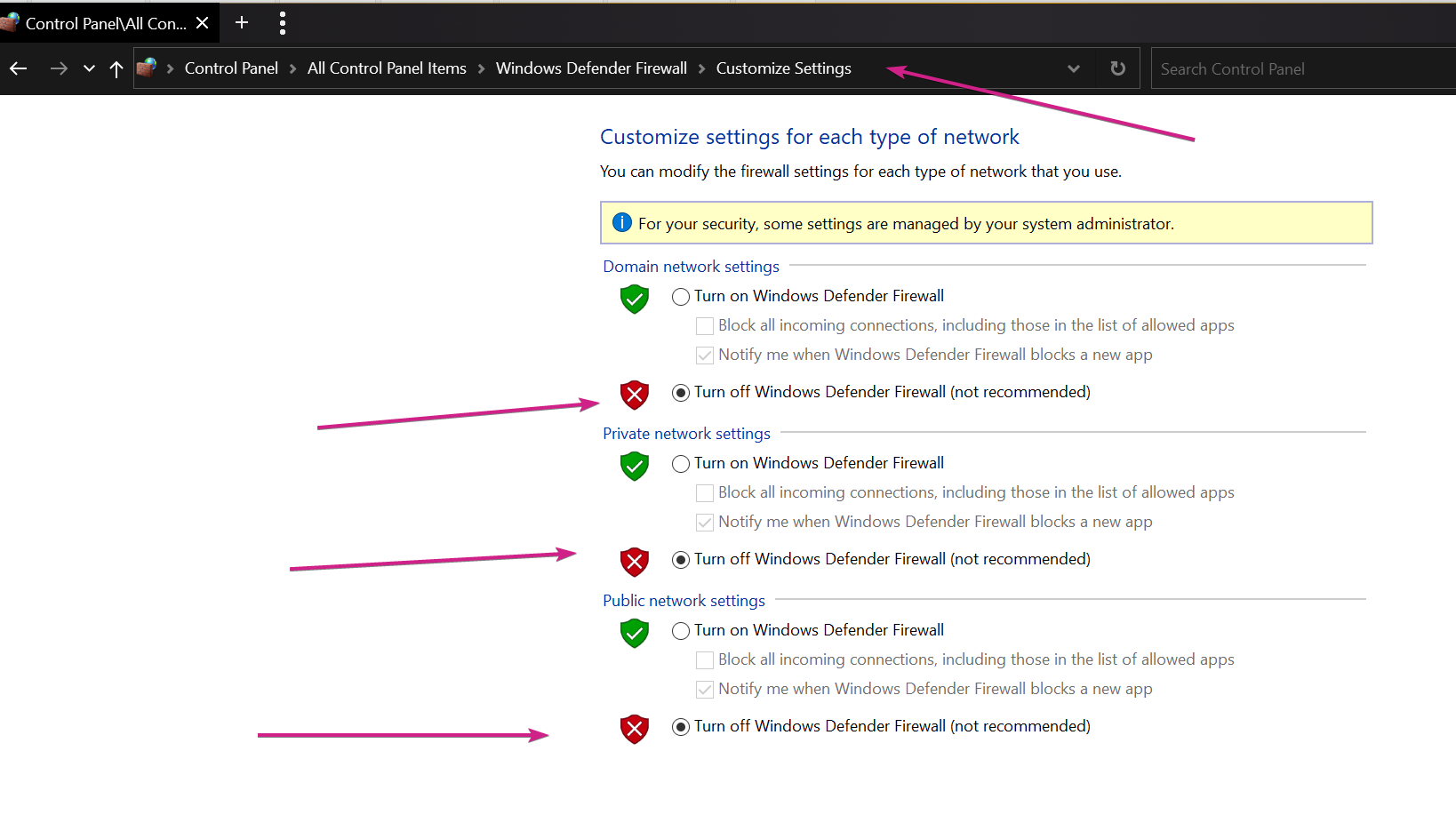
If it still fails, turn off any an all firewalls \ AV products.  Windows firewall would be:

Note: do this in that order, do not run the file with the WIndows firewall disabled.

If these fail, I am going to have to pull out an ouija board...

Sean Drohan
Stardock Support Manager

Reply #30 Top

LoL time for the ouija board...

I'll have more time tomorrow, thanks again. If you think of anything I'll check in later.

Reply #31 Top

If it does not show you this file in the download, then try pressing the buttons  (CTRL+ALT +DELETE) and logging out and then repeat the same procedure again.

Reply #32 Top

I had exactly the same problem, and there were only 3. First, you should check if you agree with the installation location and the license file. If that doesn't work, try switching computers from primary to secondary, etc. If it doesn't show you this file on boot, try pressing (CTRL + ALT + DELETE) buttons and logout, and then repeat the same procedure again. There is also a more complex method, but it should definitely work, reset or completely remove the device drivers and try downloading them again. In my opinion, this should help from personal experience. You can also visit TechPlugged.com