Winstep Nexus Dock v16.5 Released!


Windows 10 Ready The Winstep Nexus dock is a FREE dock for Windows. Every feature you’d expect from a dock, including widgets, mouse-over effects, skins, drag-and-drop, and many others not available in most other docks, such as live icon reflections, in-dock system tray, blur-behind effects, and much more. Completely customizable, with thousands of different backgrounds freely available online, Nexus is fully compatible with skins for all 3rd party docks.

Supported Languages: Bulgarian, Catalan, Chinese (Traditional), Chinese (Simplified), Croatian, Czech, Dutch, English, Farsi (Persian), Finnish, French, German, Hungarian, Indonesian, Italian, Japanese, Korean, Norwegian, Polish, Portuguese, Portuguese (Brasil), Russian, Serbian, Slovak, Spanish, Swedish.

Nexus runs on the 32 and 64 bit versions of Windows 2000, XP, 2003, Vista, 7, 8.x and Windows 10.

v16.5 is a major release, with many changes, additions and fixes. Focus was once again on adding stability improvements, but with even more functionality and eye-candy features thrown in for good measure.

What's New? Highlighted Features:


      • Faster and more convenient access to colorization options.
        Clicking the arrow symbol at the bottom of the Themes tab in Preferences now slides the colorization options in. This allows quick experimentation with the settings and instant previews without having to constantly open and close the Color Settings dialog.


      • New and improved colorization options.
        Added alternative hue shifting colorization method.
        The old Tint colorization method first converts an image to grayscale then applies a tint to the image. Blacks remain black but Whites become tinted with the new color. Original color information is lost.


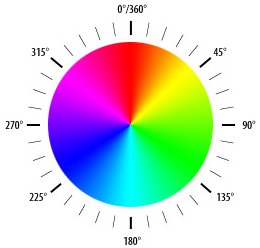
            The new Hue shift alternate colorization method first determines the dominant color of the image then shifts the hue of the whole image so that the new color becomes the dominant color. Unlike the tint method, Whites are also preserved along with Blacks, but all other colors are shifted as well.


            Which method will work best for you depends on the theme and your own personal preferences, but at least now you have a choice!
          • Wallpaper hot-track now works with the Windows 7 wallpaper slideshow.
            The option to automatically colorize themes based on the dominant color of the current desktop background was introduced with v15.9, and just got a lot better with the new Hue colorization method.
            Unfortunately it did not work with the way Windows 7 changed wallpapers in slide-show mode. Now it properly detects when Windows has changed the wallpaper and automatically adjusts the theme's colorization accordingly.


          • New Battery module customization options (Nexus Ultimate)
            The battery in the Battery Information dialog now displays using the currently selected style and glows with the dominant color of the module.


            Charge percentage and run time can now also be optionally displayed outside the battery image itself, which allows the use of customized multi-state images such as the one below:


              If you like the cartoon look above and would like to use it for your battery module, here is what you need to do:


                1. Download the multiple-state PNG strip by clicking the image above.


              2. Unzip the PNG file.
              3. Open the Dock Properties panel of any dock and navigate to the Contents tab.
              4. Select the Battery Monitor module.
              5. Change the module style to vertical.
              6. Click the Change Icon button.
              7. Browse to the cartoon-battery.png file you extracted above (optionally, if you still have the containing folder open, just drag & drop the PNG strip to the icon preview panel).
              8. Press OK to close the dialog and click on the 'Battery Monitor Settings' button.
                9. Unselect the 'Overlap information on battery icon' setting.


              • New 'Auto Backup Settings' internal command.
                Internal commands are special commands that you can add as shortcuts to the dock: Hibernate, Power Off Monitor, Empty Recycler, Show Start Menu, Language Bar, CD Control, Lookup IP address and over 80 more!
                You can add shortcuts to internal commands by right-clicking on the dock and then selecting 'Insert New Item' followed by 'Internal Command' from the context menu that pops up.


                All the new 'Auto Backup Settings' internal command does by itself is make a backup of the settings without prompting the user for a filename. The filename is automatically generated based on the date and time, and the backup is stored in the default Backups folder.
                  So, by itself the new internal command is just a convenient way to backup Nexus settings with a single click. It's when you combine it with the Alarm Manager introduced in v15.9 that it truly becomes useful:


                  The Winstep Alarm Manager is not a simple pop-up of reminders with audio abilities. It is, in fact, a full blown task scheduler with very flexible scheduling abilities.
                  Besides normal alarms, you can also make it run programs and/or internal commands at specified times. And it's this ability we will be using to our advantage.
                    So, open Preferences, go to the General tab, click the Manage Alarms button. Now click the 'New Alarm' button and add a new alarm looking something like this:


                    Up to you which schedule to use, but you should NOT make this a daily event, since 1) it would be overkill and 2) the Auto Backup internal command does NOT delete older backups automatically. You would soon have hundreds of backup files lying around.
                      So set it to run once a week or once a month. You should also disable the 'Wake the computer up if it's sleeping or hibernating' alarm setting, since this is not a critical operation that must be performed at that specific time. If the computer is sleeping or turned off when the Alarm fires - or would have fired - the event will simply be run as soon as possible.


                    • Pseudo-3D dock backgrounds like the Leopard theme no longer appear heavily distorted at certain icon/icon reflection sizes.


                    • Always on top docks set to auto-hide for maximized applications will now only do so if they are not reserving screen space (maximized applications would not be overlapped by the dock in this case anyway) and will only auto-hide for full screen applications.
                    • The dock would keep bouncing up and down if 'Auto hide for maximized applications' was enabled and the user tried to drag a shortcut from a maximized window into the dock.
                    • The 'Auto Hide at Startup' option could sometimes fail to hide the dock, leaving it visible and in an unresponsive state until you activated it with a screen edge bump.
                    • The Capture Desktop feature can now save screenshots in either JPG or PNG formats.


                      This is a head's up to Tom McNamara, a Senior Editor at Cnet's Download.com who felt the inability to save screenshots as PNG files was important enough to mention it as one of the few Cons on his review of the Winstep Nexus dock. Here you go, Tom, you can scratch that one off now. :)
                    • Themes are now validated when restoring from old backups so the user doesn't end up with a blank theme if the theme used by the backup was deleted in the mean time.
                    • URLs dragged from all Internet browsers will now use the web page title as the shortcut's label instead of the web site address.
                    • The Winstep Update Manager failed to download updates with a 'File Size Mismatch' error on East Asian systems.
                    • ... many other performance and stability improvements!


                More Information:

                Winstep Web Site:
                http://www.winstep.net

                More information about Winstep Xtreme:
                http://www.winstep.net/xtreme.asp

                More information about the Winstep Nexus dock/Nexus Ultimate:
                http://www.winstep.net/nexus.asp


                55,016 views 18 replies
                Reply #1 Top

                Fantastic app...but WAY better as part of the Winstep Xtreme app!

                :thumbsup:

                Reply #2 Top

                Just one question......how did you manage to fit all that in there without it going kablooey! If it was me I'd go squish in a hurry.

                WTG Jorge.  5* 5*

                Reply #3 Top

                 What a mind boggling amount of options. The finest dock in existence! :thumbsup: :thumbsup:

                Reply #4 Top

                Quoting Wizard1956, reply 3

                 What a mind boggling amount of options. The finest dock in existence! :thumbsup: :thumbsup:
                End of Wizard1956's quote
                   :thumbsup: :thumbsup: :thumbsup:

                Reply #5 Top

                Quoting Uvah, reply 2
                Just one question......how did you manage to fit all that in there without it going kablooey! If it was me I'd go squish in a hurry.
                End of Uvah's quote

                You mean the text in the above announcement?

                I opened the post's HTML editor and pasted the HTML code used for the Winstep  web site news item, adjusting the URLs as required. WC still managed to play havoc with the formatting of the text.

                Quoting Uvah, reply 2
                WTG Jorge.  5* 5*
                End of Uvah's quote

                Thank you! :)

                Reply #6 Top

                Thanks for the update.  I can't seem to get the "colorize" option to work on Windows 10 though.  The Nexus dock color doesn't change regardless of which color options I select.  Perhaps I'm missing a setting?

                Reply #7 Top

                Does the dock colorize in the Themes tab preview?

                Reply #8 Top

                Just tried it here to make sure nothing was broken and the colorize function is working perfectly in Nexus as it should.

                Have you tried a different theme? Some themes are simply black & white or dark gray scale and can't really be colorized.

                Reply #9 Top

                Thanks Jorge.  BTW, check the support emails.  :blush:

                Reply #10 Top

                Quoting JcRabbit, reply 8

                Just tried it here to make sure nothing was broken and the colorize function is working perfectly in Nexus as it should.

                Have you tried a different theme? Some themes are simply black & white or dark gray scale and can't really be colorized.
                End of JcRabbit's quote

                Thanks for the reply.  I experimented with different themes and color options and eventually discovered that the Colorize option works fine as long as I don't enable 

                "Colorize by shifting hues instead of tinting"

                Reply #11 Top

                Quoting Victechnical, reply 10
                Thanks for the reply.  I experimented with different themes and color options and eventually discovered that the Colorize option works fine as long as I don't enable 

                "Colorize by shifting hues instead of tinting"
                End of Victechnical's quote

                Both features (tint and hue) are working fine in this release, Victechnical, but they do very different things. I'll repeat what is written above:

                "The Tint colorization method first converts an image to grayscale then applies a tint to the image. Blacks remain black but Whites become tinted with the new color. Original color information is lost.

                The alternate Hue colorization method first determines the dominant color of the image then shifts the hue of the whole image so that the new color becomes the dominant color. Unlike the tint method, Whites are also preserved along with Blacks, but all other colors are shifted as well.

                Which method will work best for you depends on the theme and your own personal preferences, but at least now you have a choice!"

                Hue shift leaves blacks, whites and grays alone. The effect is a lot more subtle than Tint, so if your dock background is mostly gray it might look as if it wasn't being colorized at all (which is, perhaps, why you thought it wasn't working). But use a dock background with actual color and you will definitely see the difference (have a look at the pictures in the first post, first picture is the original image, second the same image tinted to red, and third the image tinted to red via Hue shift).

                The other important factor is what Hue Shift does: it shifts the Hue of *all* colors in the dock background so that the *dominant* color has the same hue as the colorization color. If you have a dock background where the dominant color is green and you shift it to red (i.e.; rotate all colors in the bitmap by -90º) then the greens will become red *but* any blues will also become green. This is just how color rotation works.

                While with Tint everything becomes gray with a tint applied on top, with Hue Shift all color information is preserved, but shifted, which can sometimes produce unexpected results (which is why you can always chose to use one method or the other).

                Personally I much prefer the results provided by the new Hue Shift method. If you actually watch the video above, wallpaper hot-track colorization is all done in that video via the Hue Shift method.

                ####

                On other news, tomorrow I will be increasing the price of Nexus Ultimate back to the original price of USD $24.95. If you want to save $5, buy it now while you still can.

                Reply #12 Top

                Just a little taste of things coming your way.

                I believe this makes Nexus the only Windows dock capable of handling UWP/Metro apps properly under Windows 10: UWP app icons are now rendered properly instead of using a generic App icon, you can now pin UWP apps to the dock from the list of running applications at the right, shortcuts to UWP apps on the left side of the dock now show a running indicator when the app is running, and, as you can see, if you already have a shortcut to a UWP app on the dock, it will not duplicate the icon in the list of running applications at the right.

                And that is not all in terms of truly spectacular additions: added a new 'Fast Boot' option that makes Nexus start at the same time as the Windows desktop, instead of slowly loading afterwards along with all the other applications. We are talking about a difference of 7-10 seconds here on a really fast system booting from an SSD!

                Stay tuned!

                Reply #13 Top

                Excellent stuff, Jorge. Enjoying your software very much.

                Reply #15 Top

                Just a heads up that a public beta of v16.6 (Nexus/Nexus Ultimate/Winstep Xtreme) has just been released.

                Besides now handling UWP/Universal apps in Windows 10 just like any other Win32 applications, there is a new 'Fast Boot' option to make Winstep applications start up much, much, faster after a system reboot or user log-in (especially under Windows 10, as it completely bypasses the 'Startup Delay' imposed by Microsoft on 3rd party applications).

                WindowBlinds users will also like to know that UI colors are no longer hardcoded into the application, so the GUI should now play ball with WindowBlinds themes (feedback on this would be very much appreciated, thanks!).


                More information on this public beta can be found HERE.

                Reply #16 Top

                Quoting RedneckDude, reply 9

                Thanks Jorge.  BTW, check the support emails.  :blush:
                End of RedneckDude's quote

                Reply #17 Top

                Gotcha, Jim, thanks! :)

                For others, there's currently a 24-hour 50% off promotion of Winstep Xtreme over at Bits Du Jour. If you're curious about Winstep Xtreme but haven't taken the plunge yet, make sure not to miss this opportunity!


                Reply #18 Top

                I'm waiting patiently for the 'Ultimate' ultimate......Winstep Xtreme OS. 

                *would make Windows pale in comparison IMO*