Frankief Frankief

Explorer Backgrounds

Explorer Backgrounds

The newest build of Windowblinds says in the history that an option has been added to change explorer backgrounds. Where can I find that option in WBconfiguration?
28,736 views 65 replies
Reply #26 Top
I like very much! Thanks SD
Reply #27 Top
You can't set the opacity in XP though.
End of quote


Am using the opacity as I wright this on XP ;)

This used to be a feature in WB back before Vista was a gleam in MS eye. Im glad to see it back :)

Reply #28 Top
Another question, if I might. Is this an all or nothing setting, or can you select different backgrounds for different folders? Nice to see it available for XP now but I know with "Windowpaper", I can change each folder and was wondering if WB can do that?
Reply #29 Top

This is not designed to be a per folder setting though I believe if you have set a per folder background then it may override WB as WB does not use that method.

Unlike the WindowPaper app, the WB feature supports emulated transparency and applies to all folders.

Reply #30 Top
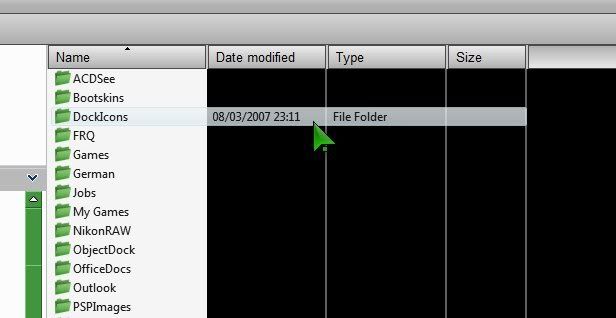
The transparency doesn't work for me. All I get is a completely black background.
Reply #31 Top
Why can't I find how to use BMP's to change backrounds? All this allows me to do is use various shades of color.
Reply #32 Top
Hey Philly, can you check if this setting affects your My Documents/My Pictures thumbnails?

When I use this setting and apply an explorer background then open up My Pictures (thumbnail view) everything looks ok. Then I close the folder, re-open the folder and half of my thumbnails look like they have an opaque screen over them. Go into WB6, reset defaults, go back to the open My Pics folder and the images still look screwed up until I close then re-open the pics folder.

I can readily reproduce this so if anyone else can I'll post it on the WB6.1 Beta Thread here

WINXP/PRO/SP2

WB6.1 Beta Thread

Cheers, f
Reply #33 Top
Looks like I just lost my last post when editing and re-submitting.

Check if your My Pics folder thumbnails look like there is an opaque screen on them after aplying this setting. Have to open and close the folder to see the glitch.

1. apply explorer backgrond in wb61 beta
2. open my pics folder with thumbnail view
2. looks like half the images have opaque screens on them blurring the images
3. set explorer background back to default
4. close and reopen My Pics folder. back to normal

I can readily reproduce this so I'll post it here WB6.1 Beta Thread.

Have a great day! Cheers, f
Reply #34 Top
Fuzzy Logic: What monitor setup do you have and how is your wallpaper being drawn (tiled, stretched etc)
Reply #35 Top
SJN: You should be able to pick the background image by selecting from the drop down box with a dotted rectangle around it.  By default it has Skin default written in it, but clicking on it should show you 29 other options.
Reply #36 Top
1280x1024, 2x7600GT in SLi, 7.15.11.6925 drivers. Tried centered, fit to page etc - all the same, a black background in explorer  :SNIFF!: 
Reply #37 Top

Example of what it looks like (cropped image)...

Reply #38 Top
WHAT! I just read this again since it had popped up again and I see that I can make my explorer backgrounds transparent! I FREAKIN' LOVE IT!  :LOL:  :CONGRAT: 
Reply #39 Top
Fuzzy Logic: Do you have the file preview pane on the right in explorer enabled (if so disable it), and are you sure the DWM is enabled?
Reply #40 Top

No preview pane, and dwm is running.

If I open up Explorer 'small', I get transparency (but not in all folders), but maximising the window turns the background black. I can drag the window to full size and transparency is there.

If I drag the cursor across the black, transparency appears in the selected area.

Reply #41 Top
SJN: You should be able to pick the background image by selecting from the drop down box with a dotted rectangle around it. By default it has Skin default written in it, but clicking on it should show you 29 other options.
End of quote


All I see is a white square (dropped down default) and nothing else. No options whatsoever.

Here's my info:
WindowBlinds version : WindowBlinds 6.1 (build 49 x86)

WindowBlinds is installed correctly on this PC
WindowBlinds appears to be activated on this PC
Your machine supports per pixel borders on WindowBlinds skins.

(Plug and Play Monitor) 1 is attached to NVIDIA GeForce 7800 GTX

Wblind.dll 2008/02/19 17:51:20
Wbsrv.dll 2008/02/13 16:15:10
Wbconfig.exe 2008/02/20 13:52:33
Wbload.exe 2008/02/14 11:05:14
Wbhelp.dll 2007/08/27 11:54:07
Wbui.dll 2007/12/01 16:43:05
Tray.dll 2007/09/12 17:58:21
Screen.exe 2008/01/11 12:14:18

Reply #42 Top
It works for me on XP but it's making a problem with shellstyle special images (the big ones in right low corner ...). Should there be a solution to fix that point ?
Reply #43 Top
If this keeps up I might have to update  :p 
Reply #44 Top
Now, I have uninstalled and reinstalled Wb and I still get the same thing (see reply #41).

I am using XP MCE SP2 with all the recent updates.
Reply #45 Top

S J N: Do you have the following directory?

C:\Documents and Settings\All Users\Documents\Stardock\WindowBlinds\Vista Images\Textures

Assuming you installed on drive C of course.

If so, what about backgrounds.uis in the vista images folder?

Reply #46 Top
C:\Documents and Settings\All Users\Documents\Stardock\WindowBlinds\Vista Images\Textures
End of quote
Vista images even in XP MCE?

Interesting.
Reply #47 Top
Neil, this is the path I have on my C drive in the Shared Documents folder

C:\Documents and Settings\All Users\Documents\Stardock\WindowBlinds\Vista Images\backgrounds.uis
Reply #48 Top
SJN: You should be able to pick the background image by selecting from the drop down box with a dotted rectangle around it.  By default it has Skin default written in it, but clicking on it should show you 29 other options.
End of quote


I have been waiting for this feature forever it seems and am thrilled! Being the greedy person that I seem to be, I would like to add my own images to the drop down box. Is this possible?
Reply #49 Top
Being the greedy person that I seem to be, I would like to add my own images to the drop down box. Is this possible?
End of quote
Try putting it in the C:\Documents and Settings\All Users\Documents\Stardock\WindowBlinds\Vista Images\Textures directory.
Reply #50 Top
Try putting it in the C:\Documents and Settings\All Users\Documents\Stardock\WindowBlinds\Vista Images\Textures directory.
End of quote


I did try a new raster image in PSP and flooding my tile in it. Saved it as a TGA. Saved it in as you suggested and it didn't work. Thanks for replying.  :)