Dual Monitors: Start11 Cannot Pin the Taskbar to the Left or Right Sides

Hello,


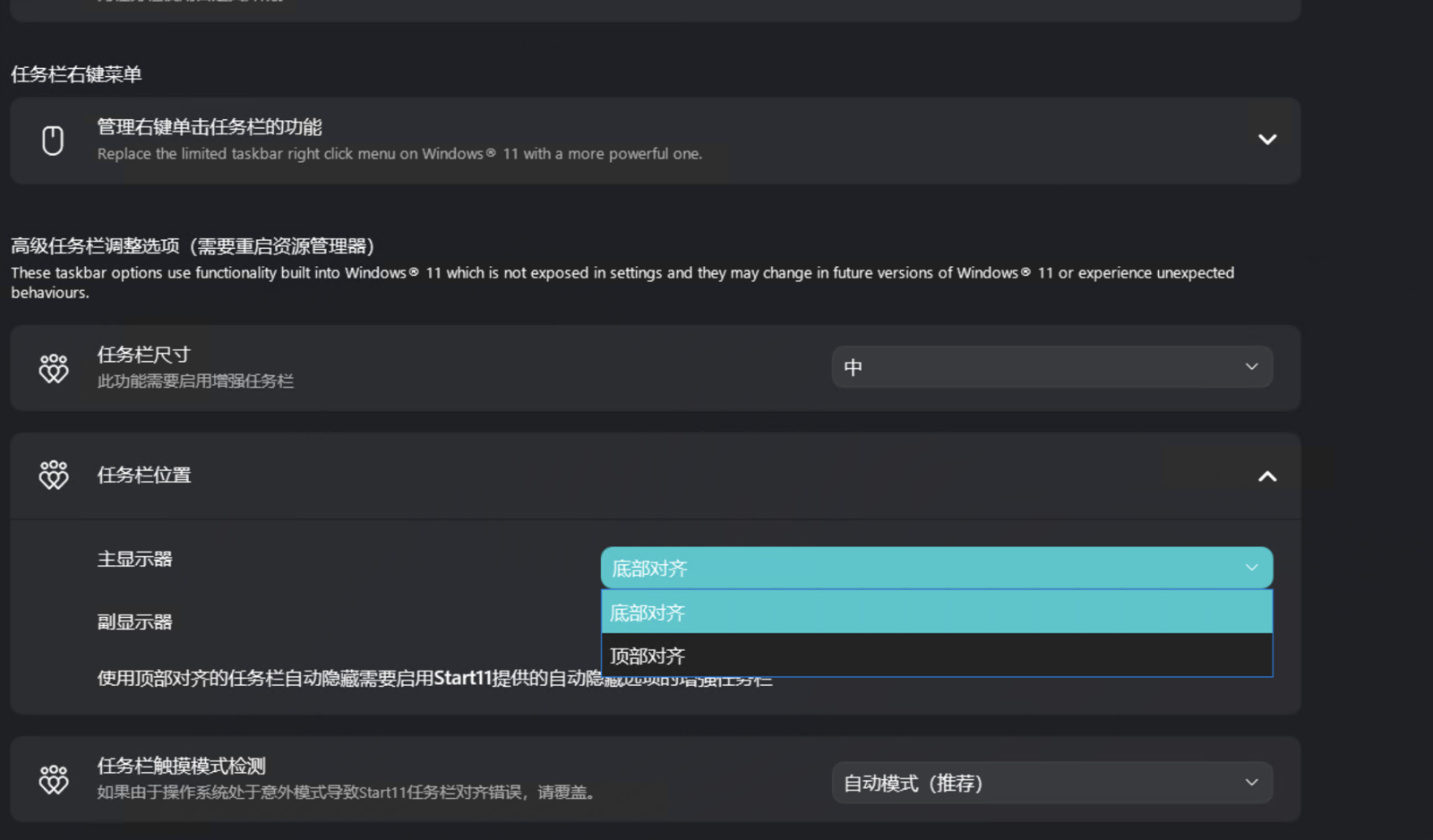
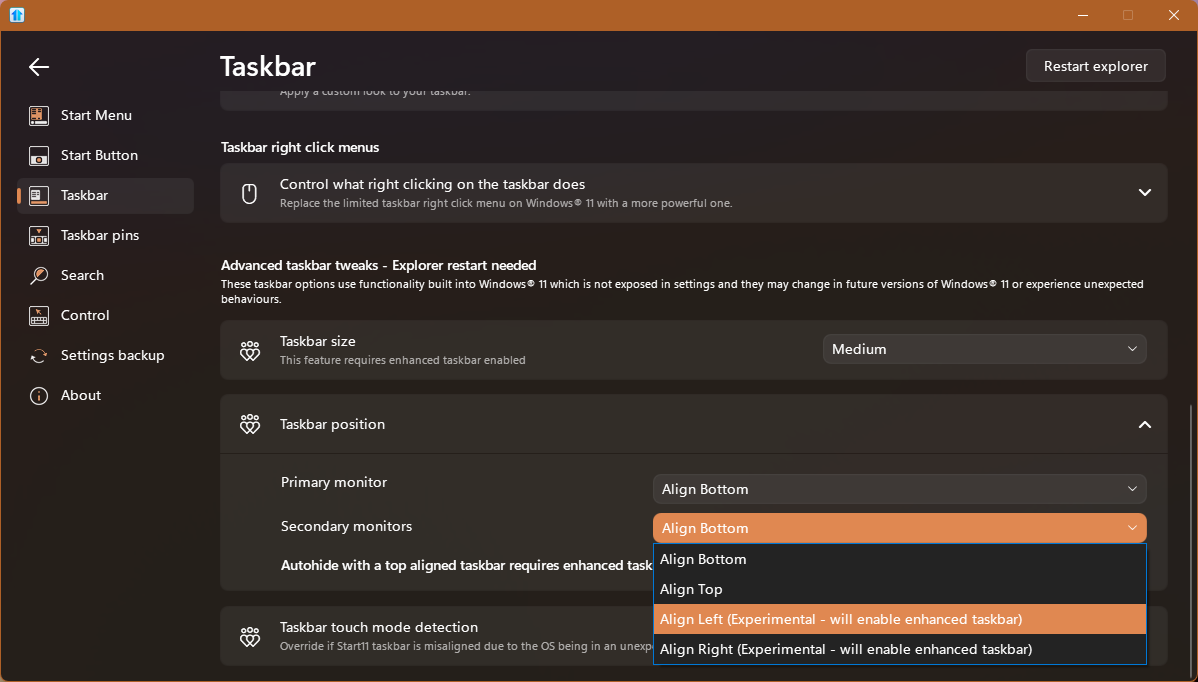
In a multi-monitor setup (Laptop with an external monitor), is it not possible to set the Start11 v2.74 taskbar to the left or right side?


Why, when I connect an external monitor to my laptop, can I only choose to place the taskbar at the top or bottom?


Also, the Start11 settings on the external monitor are grayed out and cannot be selected.

262 views 3 replies
Reply #1 Top

Check Let Start11 enhance the taskbar on the Taskbar tab first. On Windows 11 that switch is what unlocks the per-display taskbar options, and Start11 settings greyed out for a second monitor are usually it being off.

Our documentation is explicit about this for the settings next door: "To further configure the start button and/or taskbar items to left aligned or center aligned on Windows 11, first enable the 'Let Start11 enhance the taskbar' setting from the Taskbar tab. This will also allow the options to hide the start button on primary and secondary displays."

Side placement is also newer and narrower than top and bottom. Vertical taskbar support came in with 2.5 as an experimental feature and it needs Windows 11 23H2 or newer. If the enhanced taskbar switch does not bring left and right back for the external display, post your Windows build here and we can work out whether that is a limit or a bug.

One thing to expect if you do get a side taskbar running on two displays. Where the external monitor sits to the left of or above the laptop screen, a taskbar on the left, right or top has been reported to leave desktop icons not painting on the desktop. That is cosmetic, the files stay exactly where they are.

Reply #2 Top

Hello,

Sorry to hear you are having issues. Perhaps the Start11v2 was not properly installed. Please try, uninstall Start11, reboot immediately (important), download latest version available in your account product download page: https://store.stardock.com/myaccount/products. Install it, reboot immediately again. Retest it and report back.

And you should see this setting.

If you still have issue, please report back with few more details.

  1. Your Windows full version and OS Build number. Use Winver.exe to get these numbers.
  2. Start11 Enhance taskbar disabled or enable?
  3. Do you have any other application that also change how your Taskbar work running in the background?

Basj,

Stardock Community  Assistant.

Reply #3 Top

If those settings are not there it means your Windows version is too old.

You need 24H2/25H2 or later ideally.