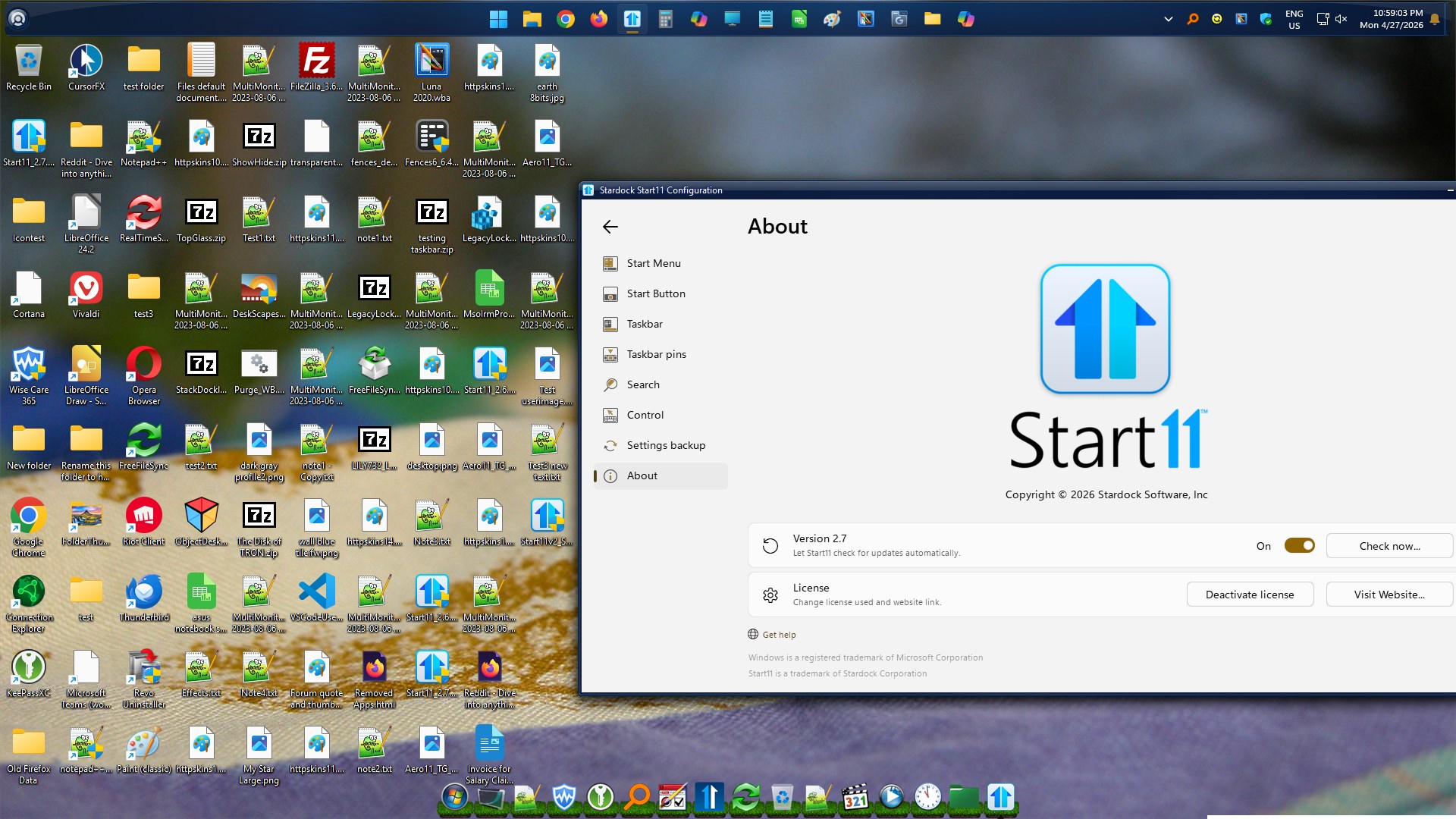
Start11 v2.7 Desktop Icons are Huge!

I upgraded to v2.7 this morning, and the desktop icons, on the main monitor only, are now huge! The only thing that affects them is Ctrl+Scroll, but the icon text is not affected, so this is not a solution.
I went through an exhaustive AI session trying to fix this, but no joy. I check the Registry and the numbers are good -1125 spacing), toggled some options in Start11 config, restarted Windows Explorer, changed screen resolution down then back up, changed scale up then down and many other attempts, but nothing returns the icons to their normal size. The other monitor (exact same brand and model) is working fine. When I drag an icon from main to second, the icon resizes to the correct size. When I drag it back to main, the icon is huge again...

The other monitor is fine, only the main monitor is affected. 

I need to downgrade to the previous version. How can I get the previous version?

System Dell laptop, Windows 11 v24H2, 2 Philips monitors (32 inch, 4k running at 2560x1440, 100%).

570 views 14 replies
Reply #1 Top

Hello,
Sorry to hear you are having issues. Perhaps it was something don't get install properly, Please try, uninstall Start11, reboot immediately (important), download latest version available in your account product download page: https://store.stardock.com/myaccount/products.  Install it, reboot immediately again. Retest it and report back.

If the issue still there, we need to know more details.

  1. Your Windows 11 24H2 OS Build number. Also, any special reason you not updating to V25H2?
  2. Start11 full version number.

Thank you,
Basj,
Stardock Community Assistant.

Reply #2 Top

I discovered more clues. The icons become huge when I set the Taskbar position to Align Top. I only do this for the main monitor. Once that is set, I get a pop-up to saying Start11 will restart the explorer. I click ok, and that's when the icons become huge. If I set the Taskbar position back to Align Bottom, the icons return to their normal size.

One of the big reasons I use Start11 is to get the taskbar back to the top. Until this bug is fixed, I cannot use Start11. 8C  

Reply #3 Top

Unfortunately, I can't not reproduce your issue. Here is my screenshot with taskbar on top.

Have you tried the uninstall/reinstall steps I suggested above?

Thank you,

Basj,
Stardock Community Assistant

Reply #4 Top

I appreciate the quick responses. Yes, I tried uninstalling - rebooting - reinstalling (twice) with the same results. I appears your system is setup as Win11. I set mine to Win10 then align the taskbar to the top.
Requested info:

Windows 11 version 24H2 (OS Build 26100.8246)    I tried to upload the image, but then I cannot post the reply.

Start11 was downloaded today.

Start11v2_Setup.exe  Size 55971 KB

Reply #5 Top

Quoting PostOnly, reply 4

I set mine to Win10
End of PostOnly's quote

What do you mean by that?

Thank you,

Basj,
Stardock Community Assistant

Reply #8 Top

I just reinstalled again, and setting Windows 10 or Windows 11 style doesn't matter. 

When I set the taskbar position to Align Top, then the icons get huge. It happens when setting either the Primary monitor or the Secondary monitors. 

I only show a taskbar on my main (external) monitor. When I set either taskbar position to Align Top, the icons get huge.

The icons grow after Start11 restarts the explorer, and just after the taskbar moves to the top. Only after the taskbar moves, do the icons grow.

Reply #9 Top

With the taskbar at the bottom and the icons small, I set the icons to be large. Then set the taskbar to the top, and the icons remained large, but the desktop setting was now set to "small." Then I set the View icons to large, and they grew even more.

So, when Align Top is set for any monitor, Start11 is restarting the explorer, then moving the taskbar to the top, then resetting the icon size to large, but the Windows icon size setting is still set to "small."  At this point, I can set the icon size (Right-click Desktop -> View -> icon size) to Medium or Large and the icons grow even larger because Windows still thinks the icons are using the "small" setting. 

Reply #10 Top

Do your monitors have different scaling factors?

Reply #11 Top

The laptop is at 175%, but the 2 external monitors (1 is my main) have scaling at 100%. The two external monitors are setup exactly the same, but only the main monitor has this issue. Icons on the second monitor are unaffected. The second monitor does not display a taskbar anywhere. That is how I set it up, but I wonder if the icons on the second monitor would be affected if a taskbar was displayed.  ???

Reply #12 Top

Ok. I think I've figured out where the bug is.

My setup is a Dell laptop with Scale of 175%. I have 2 Philips monitors with Scale 100%.

I made the laptop my main monitor and installed again. Then I set the taskbar to Align Top, and all is well. The icons are the size they should be. Then I made the Philips monitor my main (it's a 32 inch 4k monitor), the icons moved to the "new" main monitor and all the icons grew. 

Then I opened the Display Settings and changed the laptop Scale to 100%, and the icons on the Philips monitor reduced in size to normal, but the info on the laptop was too small to read. 

So, Start11 is not honoring the Scale of an external monitor when that external monitor is set as the main monitor. 

I hope this helps resolve the issue, and an update is forthcoming. In the meantime, I need a link to the previous version so I can get back to "normal" work mode. 

Thanks in advance!
Chris

Reply #13 Top

I am pleased to say that info was enough for us to reproduce it and have implemented a workaround which should be going up in the beta update this week.