
Search menu not centred/running off screen

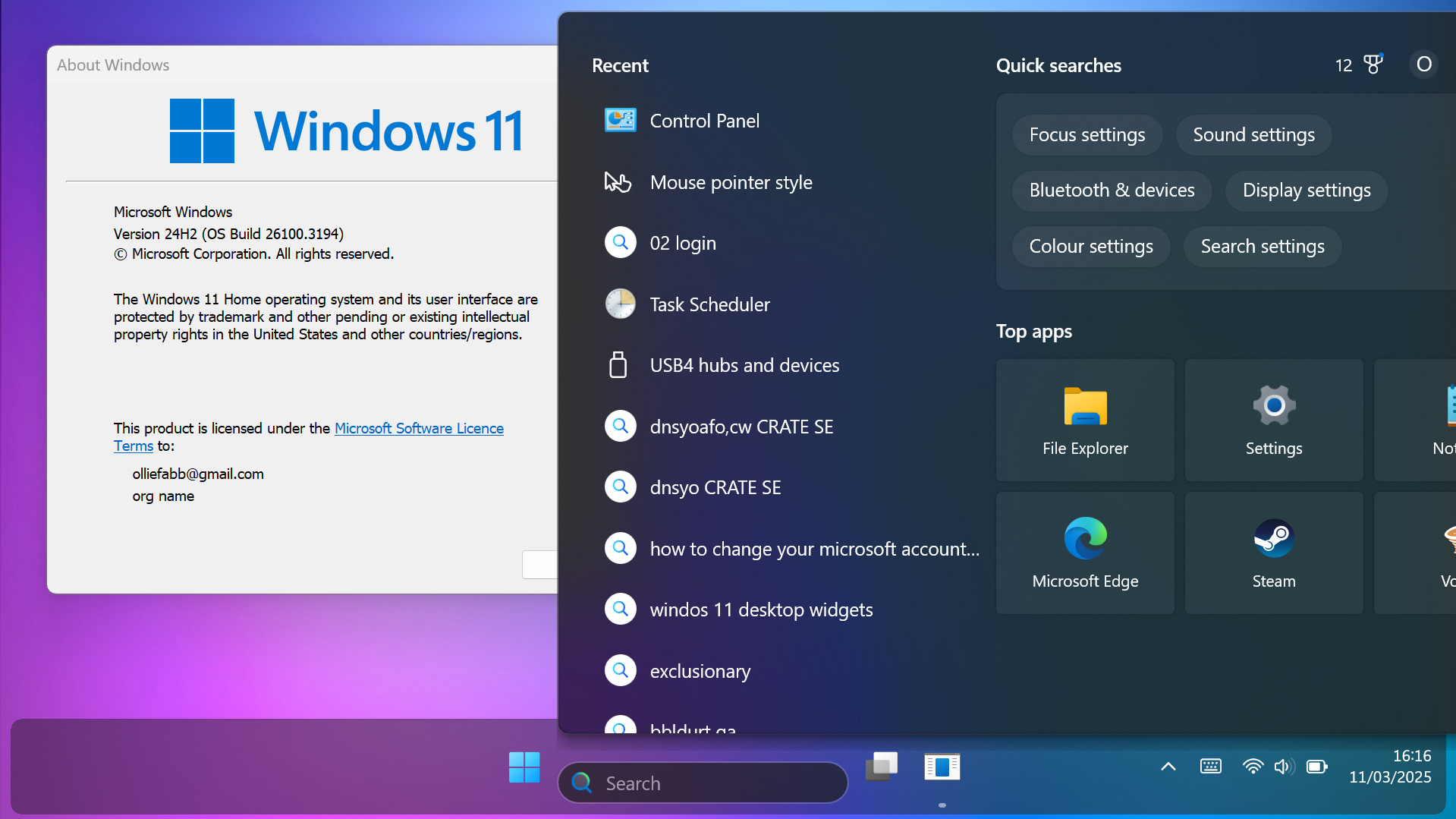
I’m using centre-aligned task bar and when I open the search menu it is aligned in such a way that the bottom left corner appears above the search box, leading the search menu to cover the right side of the screen and usually run off screen. Is it possible to get the centre of the search menu aligned with the search box/centre of the task bar so it is actually centred like the start menu? 

The search box also changes visually when I open the search menu (it is white on the taskbar, then translucent and slightly lowered when I open the search menu), and I can’t see any changes within the search menu when adjusting the search settings within Start11. 

Both Start11 and Windows are up to date. I’m using the touch optimised taskbar settings in both Windows and Start11 settings. 
1,789 views 10 replies
Reply #1 Top

Hello,
Sorry to hear you are having issues. Need more details on your system.

  1. Windows 10 or 11? Also need its full version and OS Build number. Please use Winver.exe to get these number.
  2. Start11 full version number.
  3. Post a video or a screenshot showing your issue.

Thank you,
Basj,
Stardock Community Assistant.

Reply #2 Top

I’m on Windows 11 version 24H2, OS build 26100.3194. Start 11 version 2.51. Attached screenshot below, as you can see it’s running off the screen and the search box is also not centred. When the start menu but not the search menu is open, the search box is centred and the background is white but it changes to look like this when the search menu is open.

Reply #3 Top

This is what I see on my system.

I don't see the searchbox shifted down. Perhaps this is due to that I am not on touch system. Please try changing touch setting in Start11 and see if it make any different.

Thank you,

Basj,
Stardock Community Assistant

Reply #5 Top

Please try, uninstall Start11, reboot immediately (important), download latest version available in your account product download page: https://store.stardock.com/myaccount/products. Install it, reboot immediately again. Retest it and report back.

Thank you,

Basj,
Stardock Community Assistant

Reply #6 Top

If you open a few more apps so that there are more icons on the taskbar, does the search menu then show the entire search window? If so, you could pin a few items to the taskbar so that the search menu always show the entire search window.

Reply #7 Top

Please try, uninstall Start11, reboot immediately (important), download latest version available in your account product download page:


This sort of worked for the initial problem— in the process of setting up my settings again l've narrowed down that letting Start 11 enhance the taskbar causes the search menu to not be centred. If I leave this setting off, the search menu aligns properly in the centre.


However, this introduces other issues. 

  • Turning on autohide in windows settings disables rounded corners, and makes the taskbar taller without resizing or re-aligning the icons so they are all vertically off-centre. 
  • Turning on "optimise taskbar for touch" in windows settings makes the taskbar the size l'd like, but pressing the start button doesn't make the taskbar appear, only the start menu, so it looks odd.


Any fixes for these issues? Or a fix to have the search menu properly centred with Start11’s enhanced taskbar setting turned on? 


(As an aside, if I turn on enhanced taskbar, change some settings, and turn it off again, those settings seem to be remembered somewhat. For example, if I turn on Start11’s enhanced task bar, turn on Start11’s autohide and turn off autohide and touch optimisation in windows settings, then turn off Start11’s enhanced taskbar altogether, the taskbar will still autohide even though it is not set to autohide within windows settings.)

Reply #8 Top

From what I know you will need to disable autohide in windows settings and use Start11 autohide instead. Also your search panel look a little different from mine, refer to my screenshot above. MS Copilot appear on mine, but not on yours, any setting on your different on mine? Possible due to different Windows build number?

Thank you,

Basj,
Stardock Community Assistant

Reply #9 Top

I’m aware of this, however in order to use Start11’s autohide I have to turn on Start11’s enhanced taskbar to access that setting, and using the Start11 enhanced taskbar causes the search menu misalignment bug that I am trying to fix. 


Copilot does appear in my search menu, but it is not visible in the screenshot because the search menu is running off the screen, and the icon is at the right of the menu, so it has run off screen. My windows build number in that screenshot is 26100.3194, I’ve since updated to 26100.3476 but all the issues remain. 

Reply #10 Top

Quoting dulapeep, reply 9

Copilot does appear in my search menu, but it is not visible in the screenshot because the search menu is running off the screen, and the icon is at the right of the menu, so it has run off screen.
End of dulapeep's quote

Please post a video of this happening. Below is what is happening on my system.

Thank you,

Basj,
Stardock Community Assistant