Start 11 v2 - No widgets & no Start Menu sub-menus

The title says it all - I installed Start 11 v2 having received an email that it was available, rebooted and managed to get it to align 'Top' (after some faffing), but I get no sub-menus on pinned items to the left of the start menu, and 'access denied' on sub-menus for quick-access items on the right. I also get 'Widgets are unavailable' from the taskbar widget icon. I'm using the Windows 7 style start menu.

I've tried installing both via the ObjectDesktop app and by downloading from my account on the website, with the same result.

I saw a post here saying the menu issues are fixed for the Windows 7 style start menu, but they don't work for me...

Any suggestions?

5,653 views 11 replies
Reply #1 Top

Hello,
Sorry to hear you are having issues. But, need to know your installed Start11 version? If you have not yet, please try the latest beta which is V2.0.0.2 https://store.stardock.com/myaccount/products. Download, installed, reboot and retest. Report back.

Thanks
Basj,
Stardock Community Assistant.

Reply #2 Top

Ah, OK - thanks!

That version fixes the sub-menus, but the widgets are still unavailable (with the unhelpful message, "If you're having trouble with the widgets board, here are some steps to get things working again - Retry").

It would also be helpful if we got a notification when a new version is available.

Reply #3 Top

Quoting davelorde, reply 2

Ah, OK - thanks!

That version fixes the sub-menus, but the widgets are still unavailable (with the unhelpful message, "If you're having trouble with the widgets board, here are some steps to get things working again - Retry").

It would also be helpful if we got a notification when a new version is available.
End of davelorde's quote

I can not reproduce your issue on Taskbar Widget on my system. On my system, I click on the Widget icons and it open up Widget page. Need to know your full Windows 11 version number. Use Winver.exe to get the full version numbers.

Thank you,

Basj,
Stardock Community Assistant

Reply #4 Top

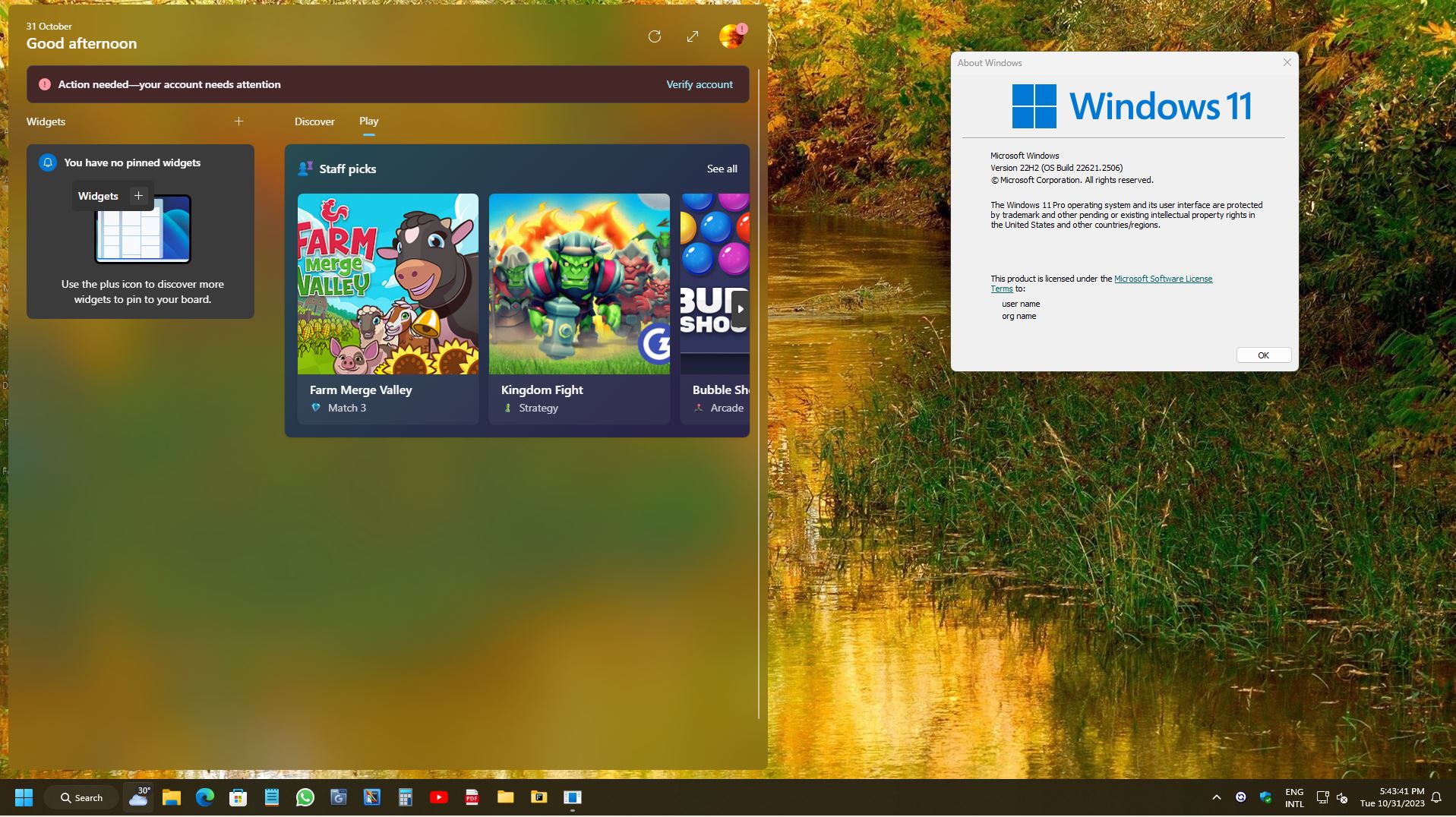
I'm using Windows 11 version 22H2 (OS Build 22621.2506).

Reply #5 Top

I am running the same Windows version and this is what I get when I hover over the widget icon on the taskbar.

What do you get on your system?

Thank you,

Basj,
Stardock Community Assistant

Reply #6 Top

Quoting davelorde, reply 2

Ah, OK - thanks!

That version fixes the sub-menus, but the widgets are still unavailable (with the unhelpful message, "If you're having trouble with the widgets board, here are some steps to get things working again - Retry").

It would also be helpful if we got a notification when a new version is available.
End of davelorde's quote

The widgets are a Microsoft feature and any issues with that are unlikely to be anything to do with Start11.

I would imagine there is a network issue somewhere causing it.  I have found them to be somewhat unreliable myself.

Reply #7 Top

Oddly, my laptop has the same version of Windows as my desktop (which has the unavailable widgets), and also the latest version of Start 11 V2, and it displays the taskbar widgets OK. The only difference is that the desktop runs Windows 11 Home and the laptop runs Windows 11 Pro.

The reason I queried whether the problem was due to Start 11 V2 is because it was working OK with Start 11 V1 and stopped working immediately after I installed Start 11 V2.  

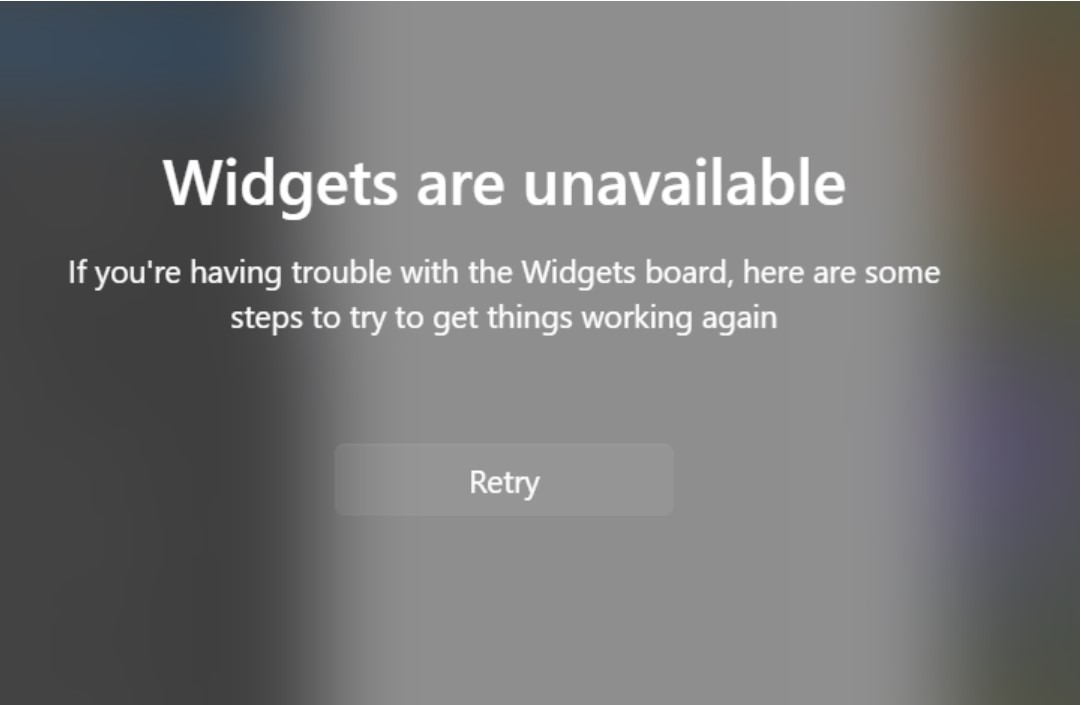
This is what it now looks like (the 'Retry' button has no effect): 

Taskbar Widgets

Reply #8 Top

Quoting davelorde, reply 7

Oddly, my laptop has the same version of Windows as my desktop (which has the unavailable widgets), and also the latest version of Start 11 V2, and it displays the taskbar widgets OK. The only difference is that the desktop runs Windows 11 Home and the laptop runs Windows 11 Pro.

The reason I queried whether the problem was due to Start 11 V2 is because it was working OK with Start 11 V1 and stopped working immediately after I installed Start 11 V2.  

This is what it now looks like (the 'Retry' button has no effect): 

Taskbar Widgets
End of davelorde's quote

It may be because you rebooted to install Start11 v2.

Issues often show up after a reboot.

Reply #9 Top

The PC is rebooted regularly - the problem appeared after rebooting for the install of Start 11 v2 and persisted for at least two reboots since.

But, I'm glad to report that, after uninstalling and reinstalling Start 11 v2, the widgets are now working properly!

Not having the widgets was a very minor inconvenience, but it was an indicator that something wasn't right, which, experience suggests, is worth chasing up.

Thanks to all for your comments and suggestions.   

Reply #10 Top

Sadly, after several episodes of instability with Start 11 V2, I've switched to StartAllBack, which is a bit less sophisticated, but way more stable for an autohide menu aligned at the top of Windows 11.

The problem is described below:

Start 11 V2 seemed stable after purging it and reinstalling it (on Windows 11, Surface Pro 9). I set the taskbar to align 'top', and set 'enhanced' mode for 'autohide'. It was fine for a few days, then after a Windows update, the taskbar icons on left and right side 'slipped down' so only the top edges were visible on the taskbar.

This taskbar issue persisted after a reboot, so I tried turning off the 'enhanced' mode to stop autohide to see if that would help. To do this, Start 11 requires Windows Explorer to restart. When Windows Explorer restarted, the screen layout kept repeatedly refreshing, making the icons jump. At this point, the start menu was responding normally, so I rebooted, but after reboot the desktop started up in the same display refresh loop and the Start 11 V2 taskbar and menu were unresponsive. 

I booted into the Windows boot menu and used Macrium Reflect to restore from a recent system backup, before purging and uninstalling Start 11 V2. This is the third time I've been through this cycle with the same result - the problem always seems to happen after disabling the 'enhanced' taskbar option and restarting Windows Explorer.

I had a similar issue on my Del XPS desktop PC, but after reinstalling Start 11 V2, I left the taskbar unenhanced (no autohide), and so far it's been stable. Unfortunately, on the Surface Pro, I need the extra screen real estate an autohide taskbar provides ¯\_(ツ)_/¯


Reply #11 Top

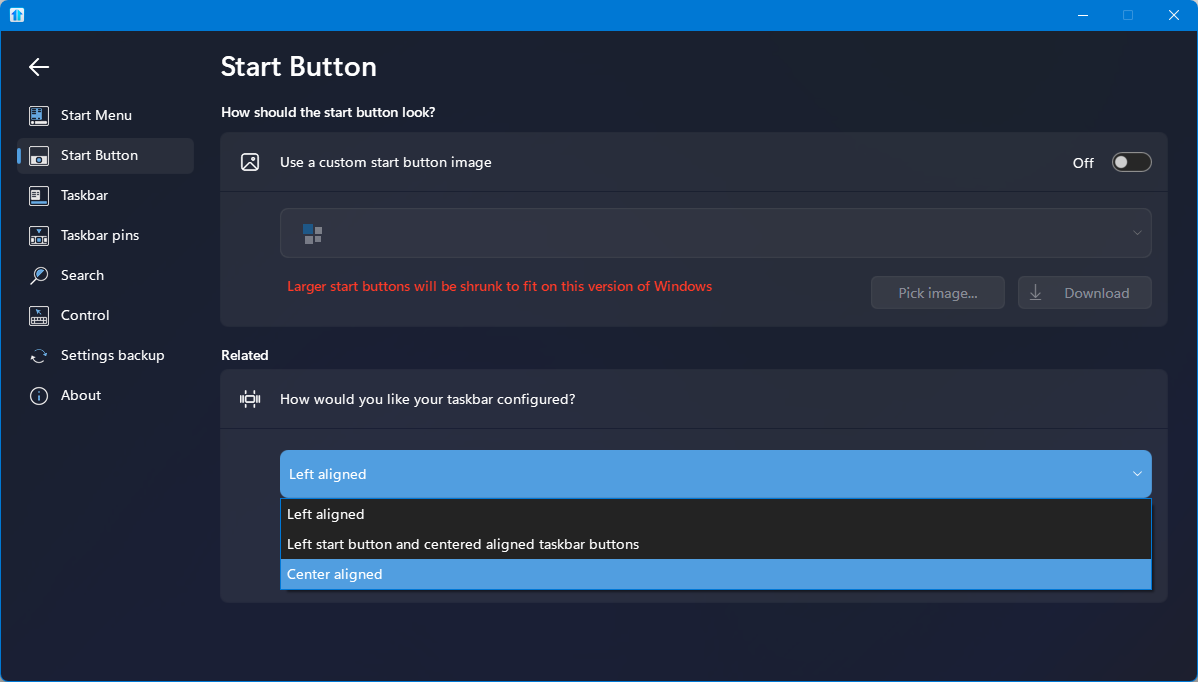
It only disappears when you center the taskbar.

Above is left aligned

Change to Center aligned and it disappears

Please fix.