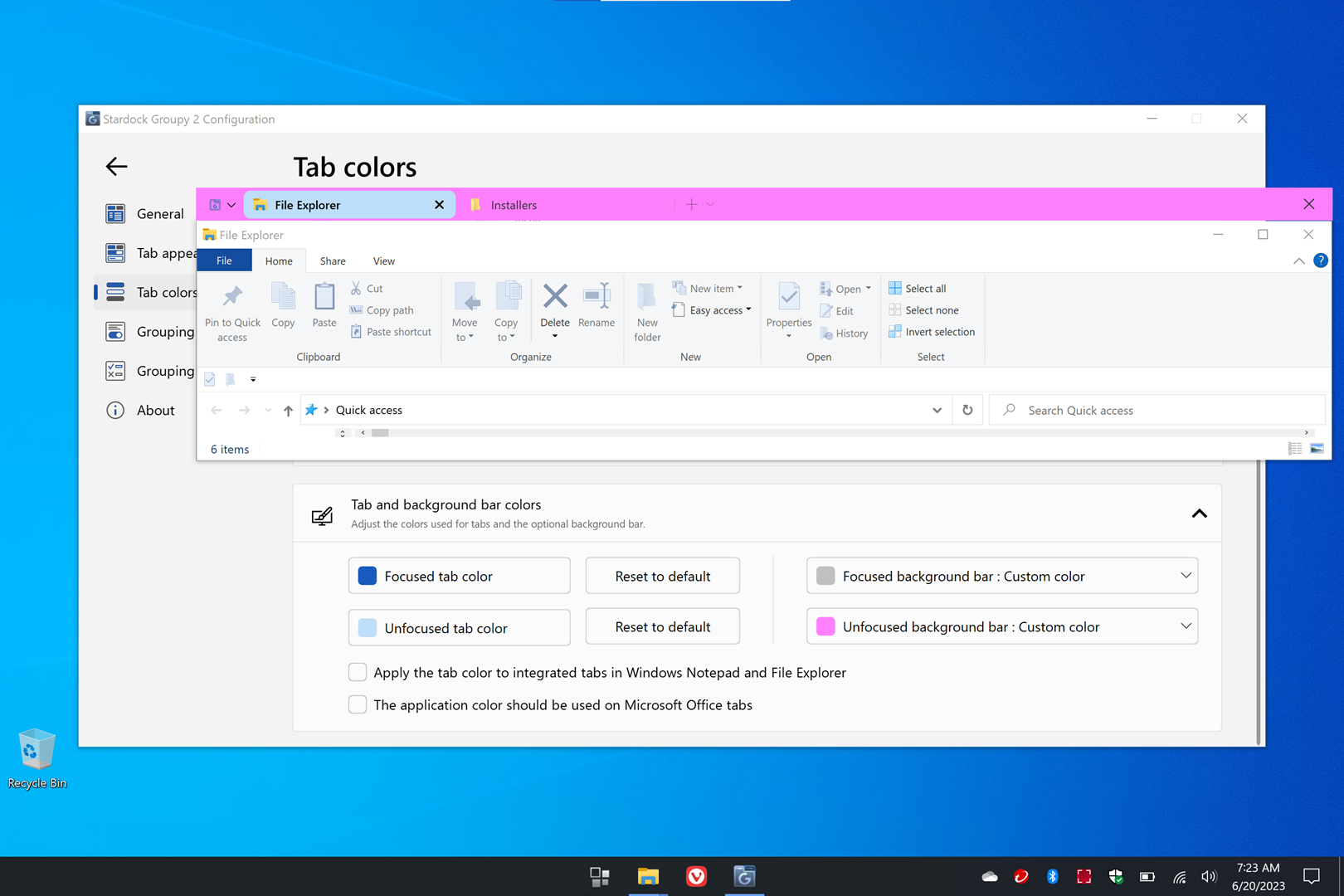
Tab & Background Bar Colors on Windows 10

I am confused about how the settings for "Focused background bar" and "Unfocused background bar" are supposed to work on Windows 10.

The "Focused tab color" and "Unfocused tab color" work the same as the "Active tab color" and "Active tab non-focused color" in Groupy1.5, but the "Unfocused background bar" custom color setting in Groupy2 seems to control both the active window and inactive window background bar color, and the "Focused Background bar" setting only controls the color of the text of the inactive tab of both active and inactive windows. Depending on the color set in the "Unfocused background bar" setting, the text of the unfocused tab is white or black based on whether the Mica setting or Frame color setting are chosen in the "Focused Background bar" setting. 

:S

Clean install of Windows 10 - 19045.3086 with only Groupy2 General Release installed.

9,869 views 8 replies
Reply #1 Top

All screenshots are with the following Groupy2 settings:

Place tabs above; Show all taskbar buttons; Rounded tabs; Always visible

1) Active Window; Unfocused background bar - Custom color = White; Focused background bar = Mica

Inactive Window; Unfocused background bar - Custom color = White; Focused background bar = Mica

********************************************************************************************************

2) Active Window; Unfocused background bar - Custom color = White; Focused background bar = Frame color

Inactive Window; Unfocused background bar - Custom color = White; Focused background bar = Frame Color

**********************************************************************************************************

3) Active Window; Unfocused background bar - Custom color = Dark Green; Focused background bar = Mica

Inactive Window; Unfocused background bar - Custom color = Dark Green; Focused background bar = Mica

*******************************************************************************************************

4) Active Window; Unfocused background bar - Custom color = Dark Green; Focused background bar = Frame Color

Inactive Window; Unfocused background bar - Custom color = Dark Green; Focused background bar = Frame Color


Clean install of Windows 10 - 19045.3086 with only Groupy2 General Release installed.

Reply #2 Top

Hello,
Sorry to hear you are having issues. Here what I get on my system. Not sure why you still have green background tab when you are focused.

Thanks
Basj,
Stardock Community Assistant.

Reply #3 Top

I uninstalled Groupy2; restarted; reinstalled Groupy2; restarted, and I can't seem to get the results you get.

Also, why is the Window Title Bar black instead of white in the unfocused image?

Focused

Unfocused

Registry Settings


Reply #4 Top

I am not sure why my inactive titlebar turn to black, while i am Windows light mode. It might because I am on Windowblinds system, but from what I know Windowblinds does not effect how groupy color those tabs and background. For those screenshots I posted above, those were taken with Windows 10 default theme (i.e Windowblinds turn off)

However, to be sure, I have forward your problem/question to Stardock Support Team for their assistance. Please keep an eye on this thread for any updates. We appreciate your feedback and patience.

Basj,
Stardock Community Assistant

Reply #5 Top

pelarid,

I was able to reproduce this on my Win10 machine as well. A bug report has been filed: ODNT-6650

Paul Scroggins
Associate Technical Support Analyst


Reply #6 Top

Quoting TPScroggins, reply 5

pelarid,

I was able to reproduce this on my Win10 machine as well. A bug report has been filed: ODNT-6650

Paul Scroggins
Associate Technical Support Analyst

End of TPScroggins's quote

That's good to hear that you were able to reproduce this issue. Hopefully a solution will be found.

Reply #7 Top

Quite by accident, I have discovered that turning off "Transparency effects" in the Windows 10 Settings on the "Color" panel causes this issue. When it is turned on, the "Background bar" colors behave as expected.

Reply #8 Top

Yes, I can confirm this, I disable the "Transparency effect" in Windows 10 setting and the issue appear on my Win10 system.

Thank you,

Basj,
Stardock Community Assistant