
How to move between pages of taskbar icons?

Loving being able to ungroup taskbar icons again, but I'm foxed by one thing - when icons get pushed onto the next page, how do I move between pages of the taskbar? There are no arrows to click, so I get stuck on the second page of icons, unable to return to the first page without resizing the taskbar height. 

While I'm here, it'd be nice if turning off the text on the taskbar icons also stopped them opening wide with a wasteful blank area where the text would have been (the space serves no purpose and pushes other icons off the screen unnecessarily).
2,470 views 10 replies
Reply #1 Top

Hello,
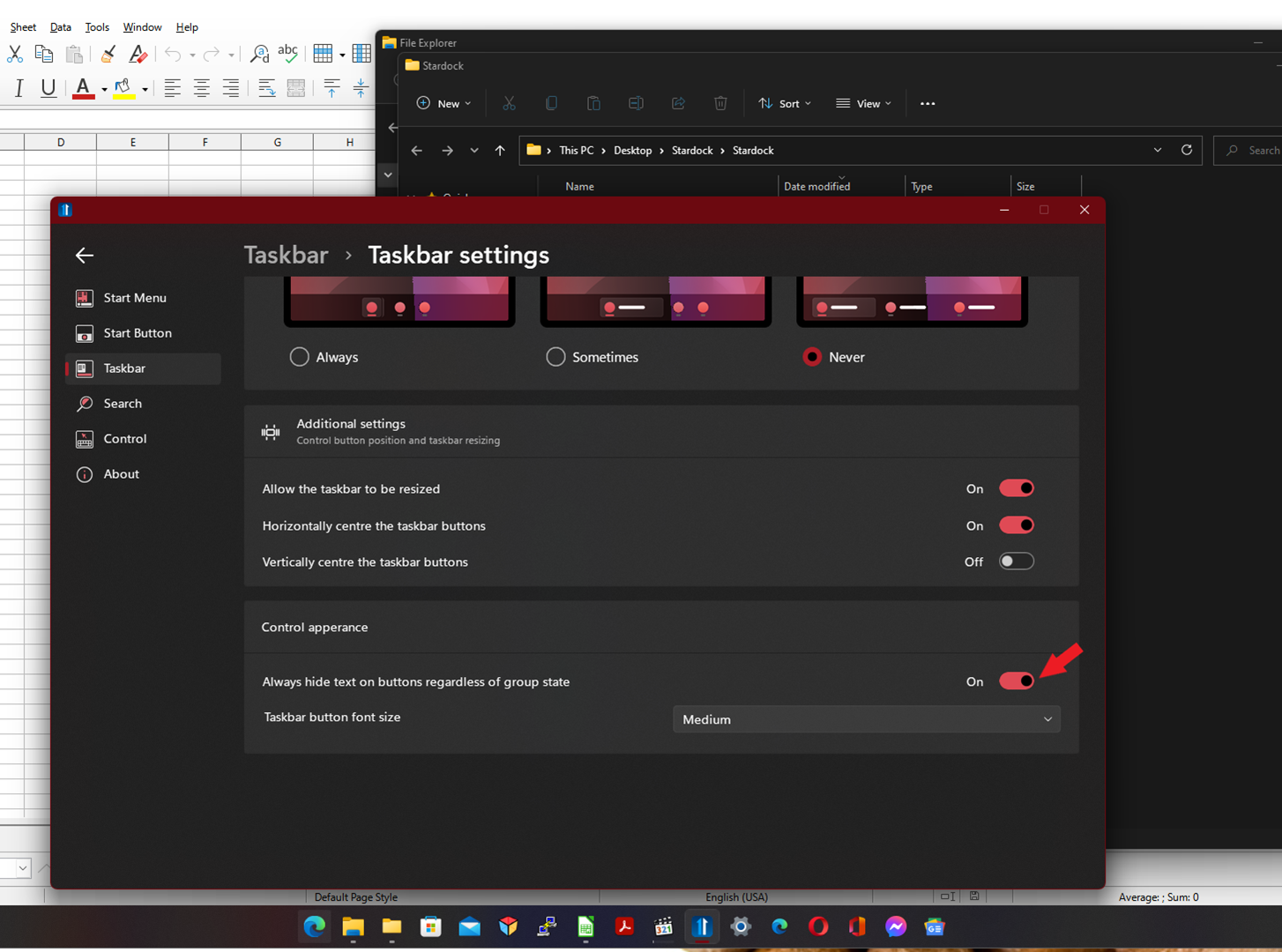
Sorry to hear you are having issues. You should be able to hide the text if you turn on this option.

Thanks
Basj,
Stardock Community Assistant.

Reply #2 Top

Thanks Basj, that turns the text off, but my point was it still leaves the space on the icon where the text was, so there's no point turning the text off - the icon still occupies masses of space when that prog is running (pushing other icons off the page). Oddly, it's fine when the taskbar is 2 or more rows high (i.e. then, the space on the icon where the text would have been disappears nicely if you turn the text off), but when the taskbar is only on one row, that unused space within each icon remains there. At least, that's how it is on my Dell XPS15.


Back to my original question, any idea on how to move between pages of taskbar icons when they flow onto a second taskbar page? I get stuck on the second page in that scenario, with no arrows to click back to the main one (just a single-screen laptop).

Reply #3 Top

Quoting RichardOHA, reply 2

Thanks Basj, that turns the text off, but my point was it still leaves the space on the icon where the text was, so there's no point turning the text off - the icon still occupies masses of space when that prog is running (pushing other icons off the page).
End of RichardOHA's quote

I am not sure, but, did you notice my screenshot above. When that text is off, there is no space for text at all.

Once that is done, than you will have more space for those icons to be on the taskbar. lessen the need to have two or more lines on the taskbar.

Thank you,

Basj,
Stardock Community Assistant

Reply #4 Top

Thanks Basj. Playing a bit more, I've found that when an app is open that has multiple windows, e.g. 2 docs in PowerPoint, Postbox Email (with a compose screen open too), FLStudio (which has multiple windows anyway), it causes ALL the running apps to have wide icons (with a gap where the text would be), including Opera, Google Earth, File Explorer etc.

Prior to launching the 2nd doc in, say, PowerPoint or whatever, all icons are normal (like in your screenshot).

This isn't a complaint or major prob, it's wonderful to have any sort of ungrouping! No worries.

Reply #5 Top

Quoting RichardOHA, reply 4

Thanks Basj. Playing a bit more, I've found that when an app is open that has multiple windows, e.g. 2 docs in PowerPoint, Postbox Email (with a compose screen open too), FLStudio (which has multiple windows anyway), it causes ALL the running apps to have wide icons (with a gap where the text would be), including Opera, Google Earth, File Explorer etc.

Prior to launching the 2nd doc in, say, PowerPoint or whatever, all icons are normal (like in your screenshot).

This isn't a complaint or major prob, it's wonderful to have any sort of ungrouping! No worries.
End of RichardOHA's quote

Thank you for the report.

We have this resolved for the next update.

Reply #6 Top

Quoting RichardOHA, reply 2

Thanks Basj, that turns the text off, but my point was it still leaves the space on the icon where the text was, so there's no point turning the text off - the icon still occupies masses of space when that prog is running (pushing other icons off the page). Oddly, it's fine when the taskbar is 2 or more rows high (i.e. then, the space on the icon where the text would have been disappears nicely if you turn the text off), but when the taskbar is only on one row, that unused space within each icon remains there. At least, that's how it is on my Dell XPS15.


Back to my original question, any idea on how to move between pages of taskbar icons when they flow onto a second taskbar page? I get stuck on the second page in that scenario, with no arrows to click back to the main one (just a single-screen laptop).

End of RichardOHA's quote

When there is insufficient space you should get a slider line on the far right.  This can be clicked to scroll.  However there is a bug stopping it painting.

You can scroll using your wheel mouse however if you move the mouse over the taskbar.

Reply #8 Top

I posted about this issue (can't access the "invisible" taskbar items) before I saw this thread.

I'll look forward to a Start11 update fixing the "slider line" problem.

I'll try using a mouse, but that's not really a workable solution for me (I'm using a Lenovo 2-in-1 as a tablet, running a sheet music display application - don't really want to have a mouse sitting on my music stand).

Thanks, Rob L


Reply #9 Top

Quoting rlindx, reply 8

I posted about this issue (can't access the "invisible" taskbar items) before I saw this thread.

I'll look forward to a Start11 update fixing the "slider line" problem.

I'll try using a mouse, but that's not really a workable solution for me (I'm using a Lenovo 2-in-1 as a tablet, running a sheet music display application - don't really want to have a mouse sitting on my music stand).

Thanks, Rob L

 
End of rlindx's quote

This was fixed a long time ago.

If you are using 1.24 the fix is in.

Reply #10 Top

I am on 1.24.  I've tried it again today, and I see it IS working - but very difficult to trigger by finger via my touchscreen (a Lenovo Flex5).  Perhaps it will work better with my stylus.  The up/down activation points are very difficult to find with my finger.