Start11 Taskbar on 2nd monitor with auto-hide

Taskbar on dual monitor system

Start11 in Windows 11 (Windows 10 style), dual monitor system (both monitors are identical).

The taskbar is displayed on both monitors (configured to hide when not in use). However, the taskbar on the right monitor is taller (approx. 71 pixels) than on the left main monitor (approx. 48 pixels).

How to fix this problem?

6,393 views 22 replies
Reply #1 Top

Hello,
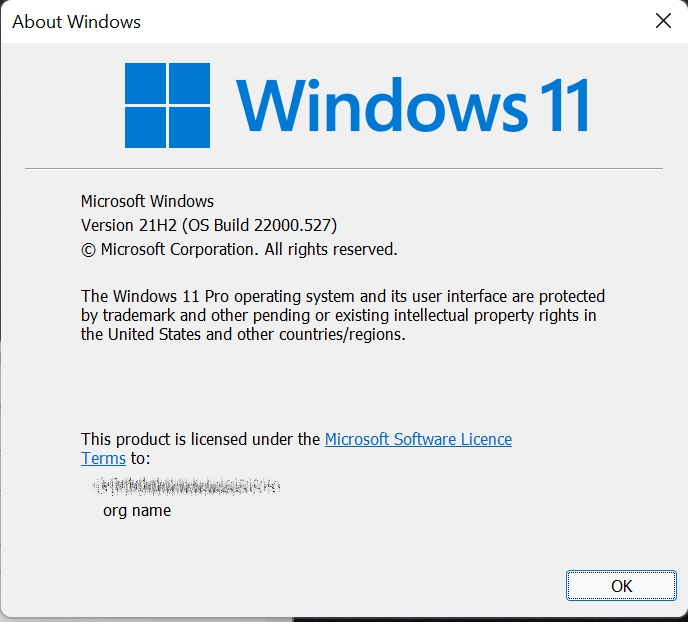
Sorry to hear you are having issues. What version of Windows you have on? Use Winver to get Windows full version numbers. And Start11 version number please.

Thanks
Basj,
Stardock Community Assistant.

Reply #3 Top

What version of Start11 are you running ?

Reply #5 Top

Are you taskbars on the top or the bottom of your Monitors?

Thank you,

Basj,
Stardock Community Assistant

Reply #8 Top

Hi AzDude

Thanks for the advice.

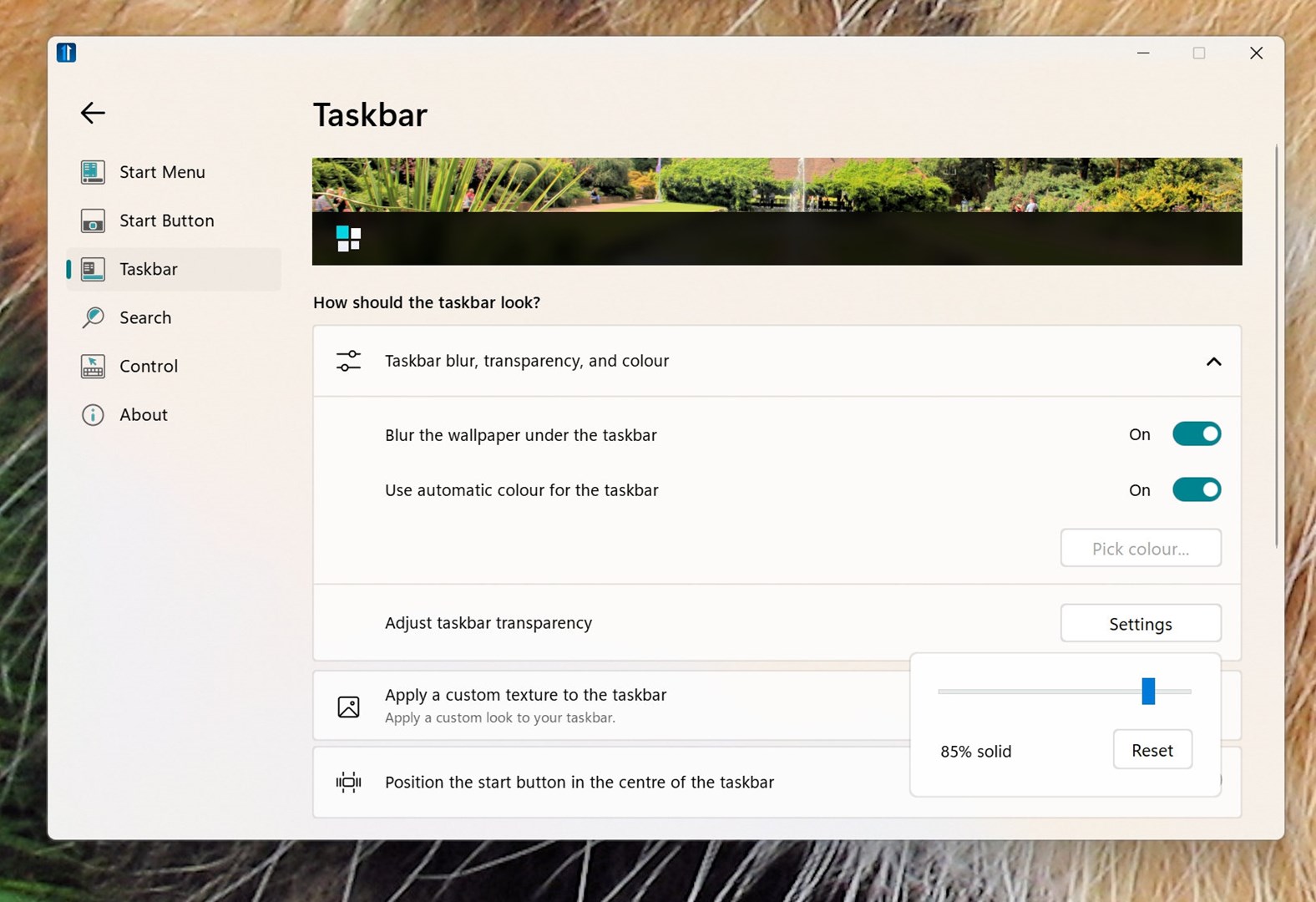
I'm afraid that didn't work. I followed your instructions to the letter, but the results are rather strange.

1. The taskbar on the right monitor is still much higher.

2. The taskbar on the left monitor appears to be solid.

3. The task bar on the right monitor is 100% transparent

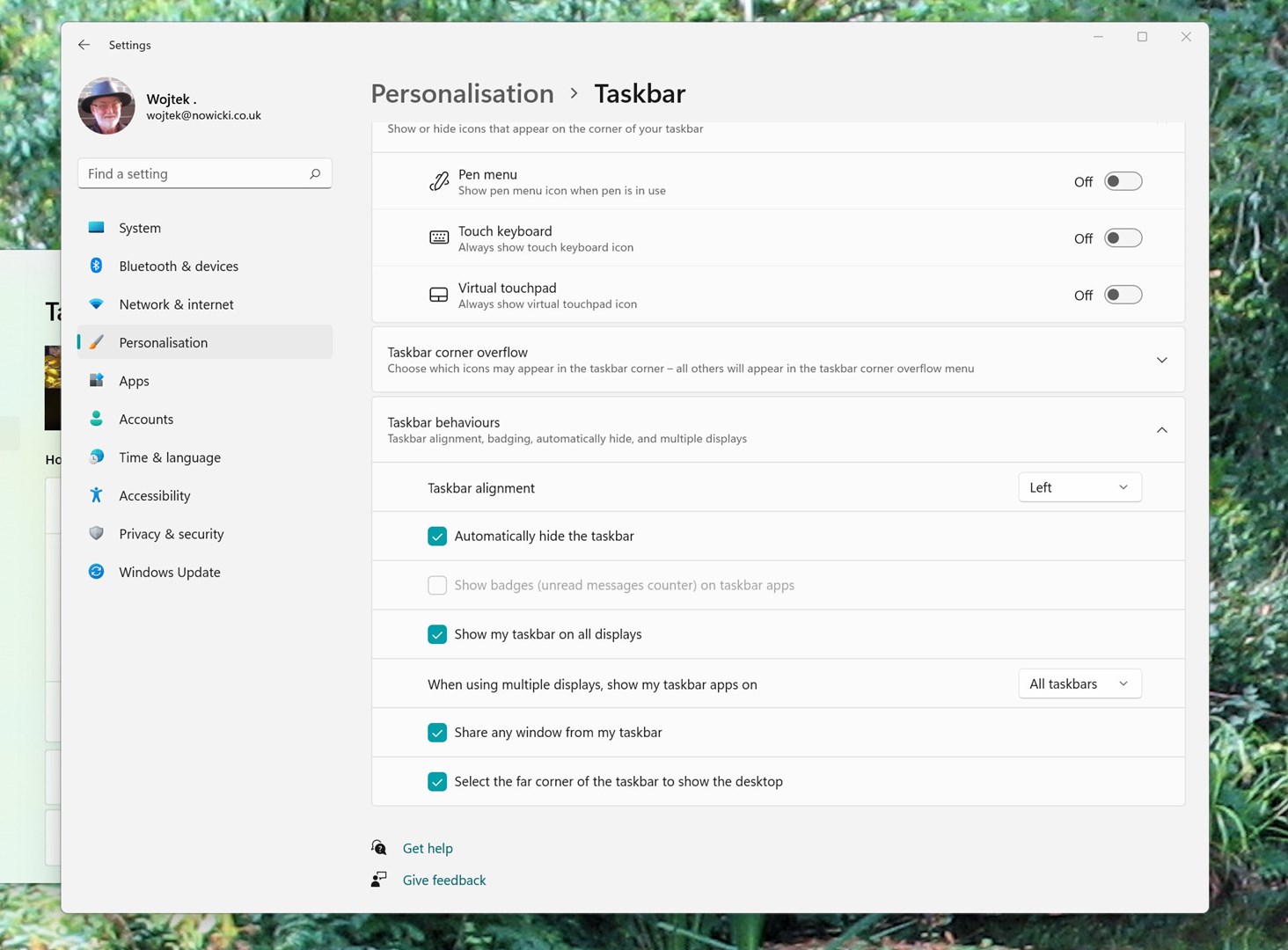
4. Both taskbars do not hide (in Personalization -> Taskbar, the "Automatically hide the taskbar" option is selected)

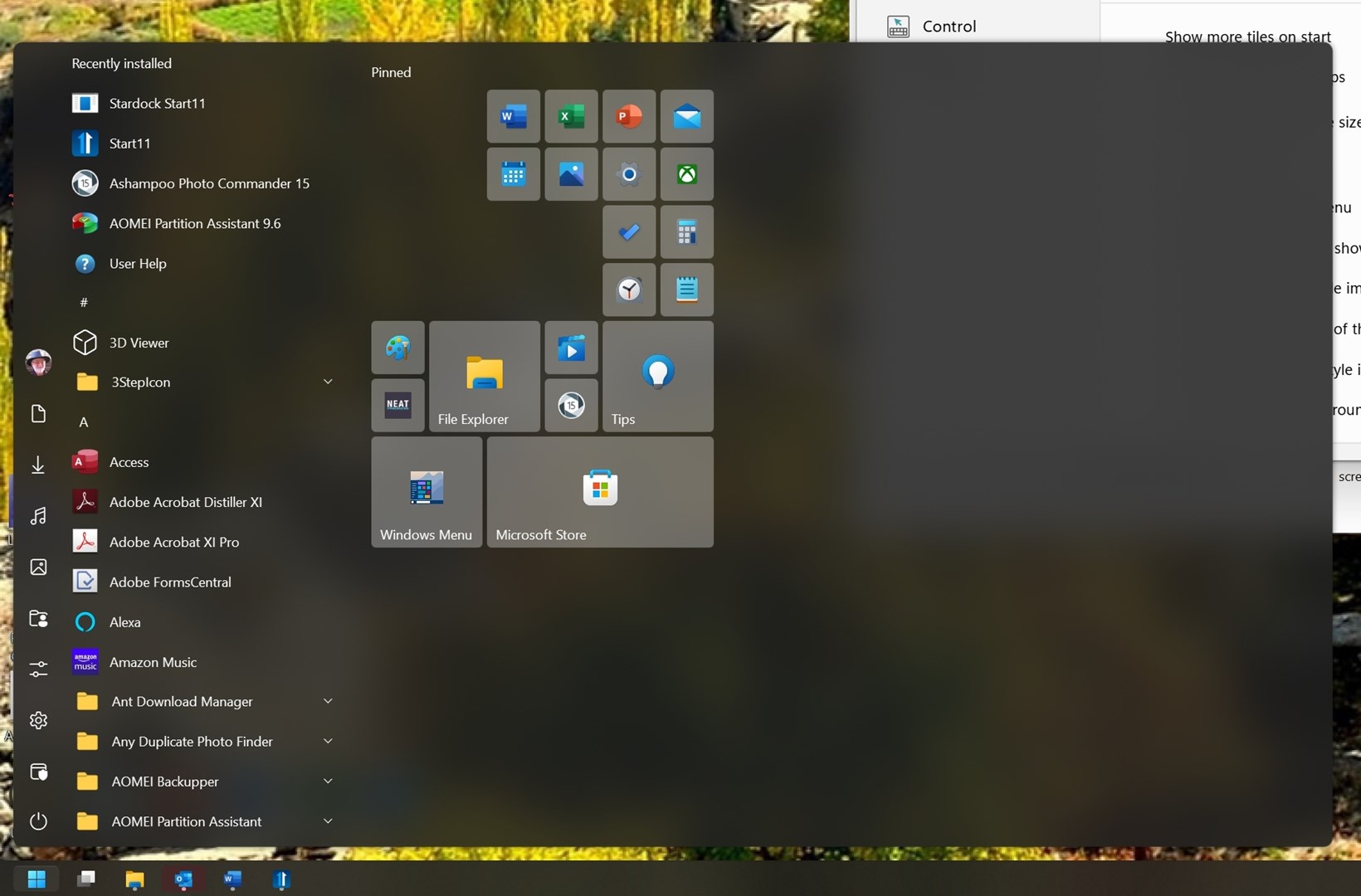
5. I've lost almost all my tiles from the Start.

Got an idea what I can do next?

Thanks

starazaba

Reply #10 Top

Hello,
Not sure if it is apply to your version of Windows 11 but from what I read elsewhere, there is issue with Windows 11 when using autohide taskbar. Is it possible for you to update to latest Official Stable version of Windows 11? I am on V21H2 Os Build 22000.527. Or disable autohide and test.

Thanks

Basj,
Stardock Community Assistant.

Reply #11 Top

Also look into this solution found by other client : https://forums.stardock.com/510545/get;3839713. Not quite the same issue but also related to Auto hide  taskbar. Might try similar steps as mentioned there.

Thank you,

Basj,
Stardock Community Assistant

Reply #12 Top

Hi Basj

Thanks for the suggestions.

I'm actually using the latest version of Windows 11.

 Tried various things including changing all taskbar settings to on / off and back on.

As a result, I'm in square one, that is, I have a taskbar on both monitors (bottom), both are semi-transparent and hide. The taskbar on the right monitor is still taller .

Honestly, I don't know what else to do.

As far as I understand, there is only one global setting in the registry that controls the size of the taskbar (not separate for each monitor).

So, what else can I try?

starazaba

Reply #13 Top

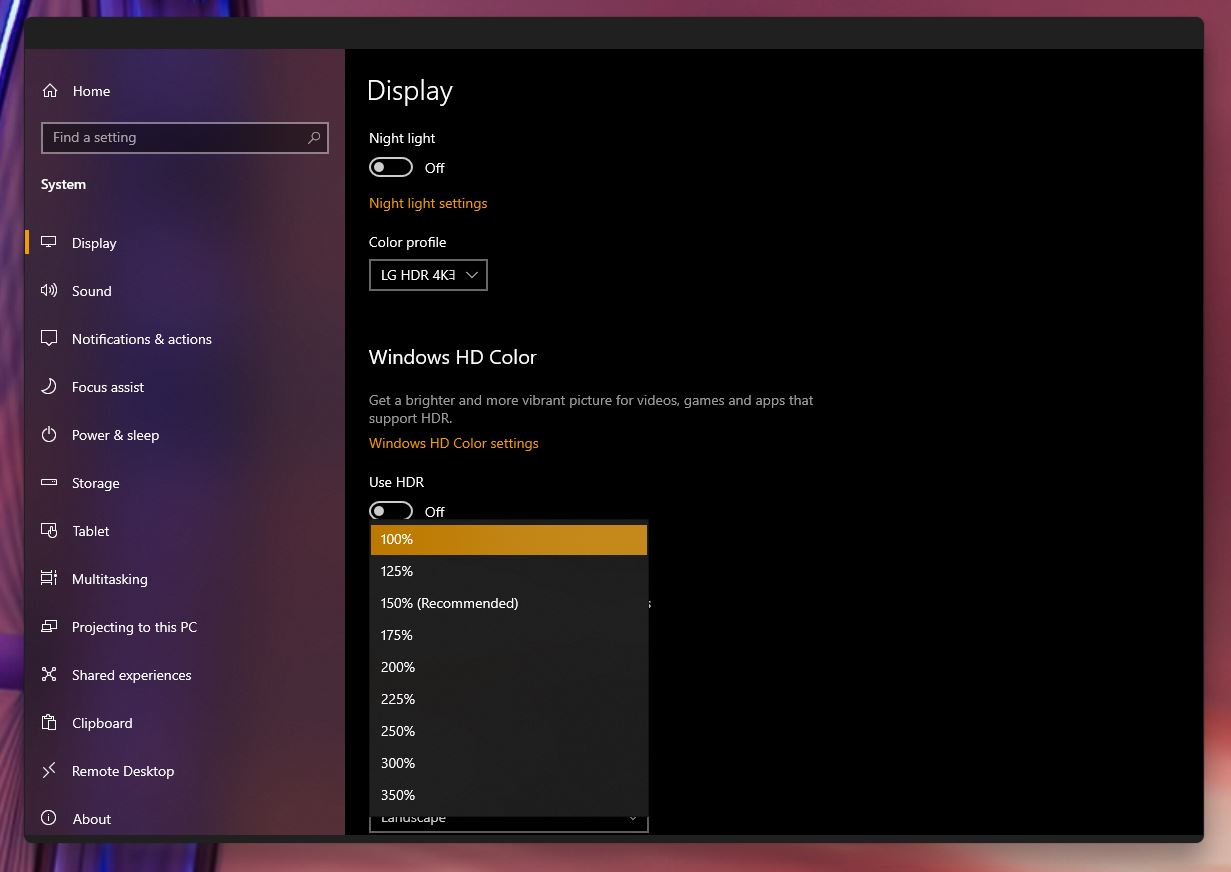
Is the scaling on both monitor is the same?

Thank you,

Basj,
Stardock Community Assistant

Reply #15 Top

No, I mean scaling. (100%,125% etc)

Thank you,

Basj,
Stardock Community Assistant

Reply #16 Top

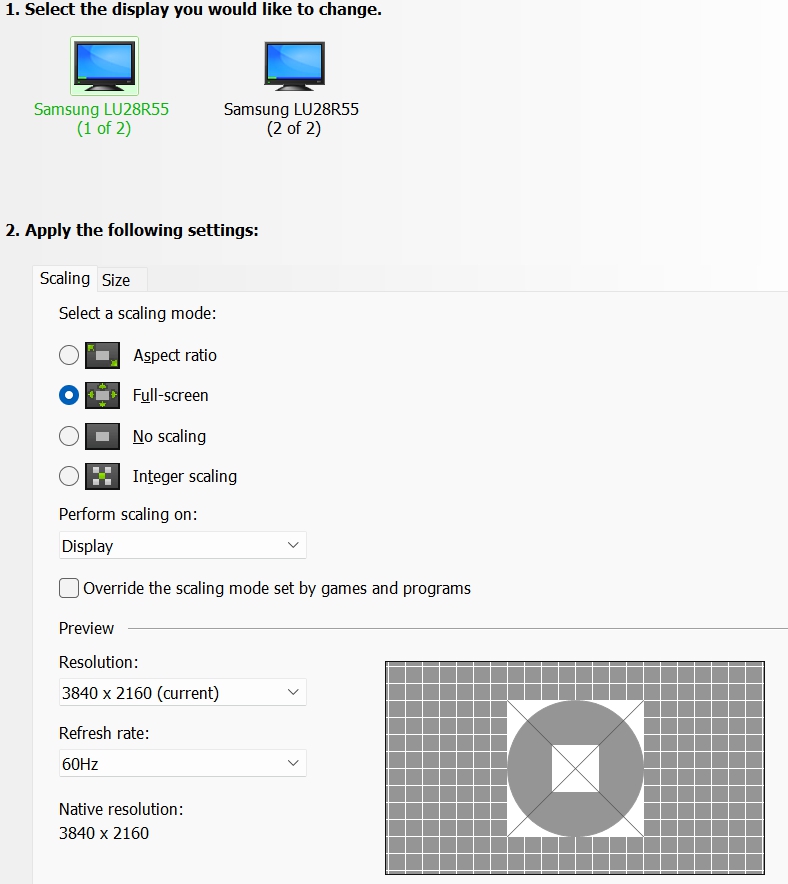
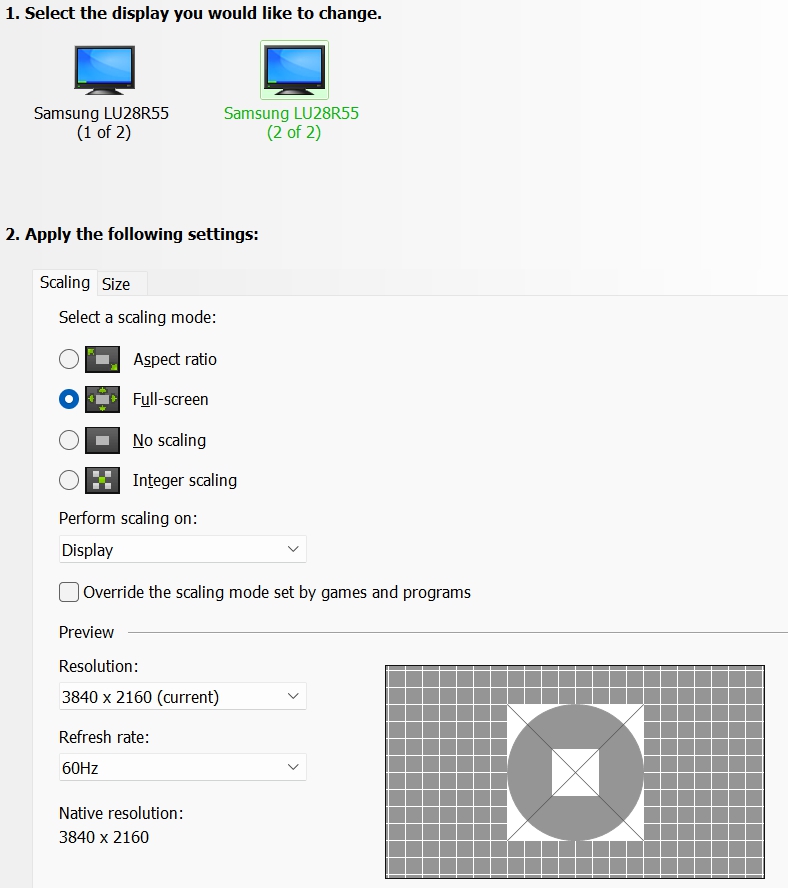
Both are the same - 150% (large monitors, high resolution - 100% would useless)

   and    hence confusion.

Reply #17 Top

Hello,

I have forwarded your report to the Stardock support team for their review and recommendations.

Please keep an eye on this thread for any updates.

We really do appreciate your feedback, thanks.

Reply #20 Top

Hi

I followed your instruction and here are the results:

1. A new administrator account has been created

2. Logged in to the new account

- left taskbar OK,

- right taskbar - still the same problem.

3. Performed a "clean" boot as per MS instructions

- left taskbar OK

- right taskbar still the same problem.

4. Run the batch file

- left taskbar OK

- right taskbar still the same problem.

5. Restarted to the original account

- left taskbar OK

- right taskbar still the same problem.

- the Start menu is broken

6. Restored a system backup, which was made before the above exercise.

7. A message about the new version of Start11 popped up. I accepted update.

8. After the update.

- Start menu completely messed up. Start11 added "Windows Start" shortcut and reorganized all the other shortcuts

- left taskbar OK

- right taskbar is not working. If "hide the taskbar" is deselected, both taskbars are visible and have the same height. However, if "hide taskbar" is selected, only the left taskbar works. The right taskbar is invisible and the only way to get it up is to move the cursor on the right screen down "outside" the desktop and right-click (by the way, it is still taler once it come up).

There is one thing that I have noticed that may be of importance. The higher taskbar isn't taller at all, it's just shifted by approx. 20 pixels up. This space of about 20 pixels is inactive, or rather right click will result with the "show the desktop" button. Most peculiar.

 I think at this point I will just restore the backup, discard any Start11 updates and wait for Microsoft to give users option to configure the Start menu and taskbar the way most people like it, i.e. Windows 10

Right now, I'm a bit concerned about using Start11. The problem with the taskbar on the second monitor is pretty trivial, but who knows what else might be hiding in this app, which isn't quite OK.

 Thank you for helping me in solving this problem, but right now it seems to be dead end.

Kind regards

Starazaba



Reply #21 Top

Correction.

I have restored an older backup by mistake. That's why I got the Start 11 update message. So, there was no problem with the Start menu.

Now my system is back to its February 25 state. Both taskbars work.

The right taskbar is higher, but I will have to live with this "feature".

Thanks again for trying to fix the problem.

Kind regards

starazaba

Reply #22 Top

Hello,

I have forward your problem/question to Stardock Support Team for their assistance. Please keep an eye on this thread for any updates. We appreciate your feedback and patience.

Basj,

Stardock Community Assistant