Sidebar glitch on Windows 11

Hi, I'm hoping someone can help out with a Multiplicity Windows 11 specific issue.

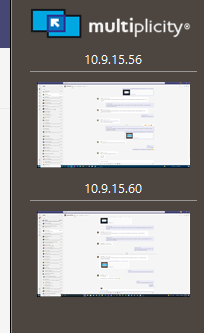
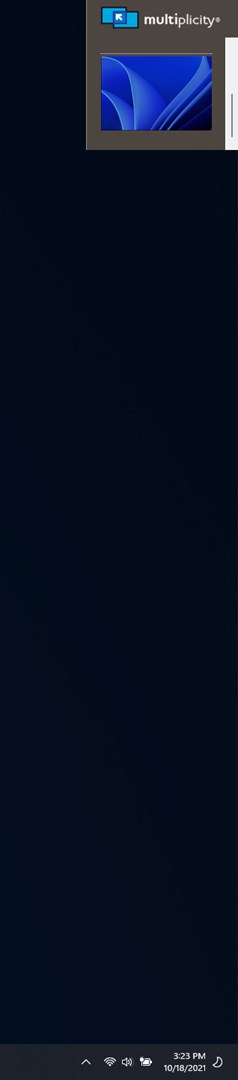
Since upgrading to Windows 11 recently, Multiplicity's sidebar does not display correctly. It used to display a vertical bar from the top of the screen down to the bottom. In Windows 10, all remote systems would be listed vertically down the bar. In Windows 11 however, the sidebar is only big enough to fit a single remote system, and does not span the full height of the desktop (see screenshot). A scroll bar appears to allow access to the other remote systems. In addition, the sidebar does not auto hide and is always on the screen overlapping all other windows.


Here is what the right most part of the desktop is showing. They grey bar used to span down to the bottom prior to Windows 11.

Thanks for your help.
6,625 views 5 replies
Reply #1 Top

Hello,

I have forwarded your report to the Stardock support team for their review and recommendations.

Please keep an eye on this thread for any updates.

We really do appreciate your feedback, thanks.

Reply #2 Top

Hello,

Sorry to hear you are having trouble.

I cant seem to reproduce the issue on Win11

The two systems I have configured are shown as one would expect. 

If you change monitors that the bar is shown on, or resolutions on the one it's on now, does it alter the issue?

Sean Drohan
Stardock Support Manager

Reply #3 Top

hmmm, I think I may be seeing some of what you are talking about... While all my PCs show, I do see what you are saying here:

Here is what the right most part of the desktop is showing. They grey bar used to span down to the bottom prior to Windows 11.
End of quote

https://cdn.stardock.us/support/uploads/2021-10-19_09-19-52.mp4

The MP bar ends where the last PC ends (I might actually like that but not how it is supposed to work).

I would like to work on all your PCs showing - to see that we can - before I bug this.

Sean Drohan
Stardock Support Manager


Reply #4 Top

I had some time to play around with it. I think I've got a work around, but I'm not sure how permanent it is.

If I change to any display resolution while the bar is not in auto-hide mode, the full bar appears and stay on screen without issue. If I then switch it to auto-hide mode then the bar breaks again as in the previous image.

If I first change to auto-hide mode, and then switch to any resolution (including switching back to my original resolution), the full bar is shown and even auto hides and reappears as expected.

What's interesting is that I had the bar in auto-hide mode when the system was upgraded to Windows 11. So flipping the resolution back and forth after the upgrade seems to fix things. I'm not sure if a system restart, power down, log out, etc. will re-trigger the issue though. I didn't test those out scenarios but hopefully that's enough to go on to figure out/fix the issue permanently.

Thanks for your help. The workaround is a great first step.

Reply #5 Top

Hi, I just wanted to mention that this is still an issue in Windows 11 at this time.

Upon rebooting the system, the grey bar does not span the entire vertical resolution of my display. Switching the Windows display resolution to anything else and reverting back corrects the problem until the next reboot. This is the work around being used until the problem can get fixed properly.

I'm hoping this bug can get fixed at some point since it seems to be specific to Windows 11 (and possibly future versions of the operating system).

Thanks.