Stardock fences

Windows explorer wont load at startup

Windows explorer wont load on startup after installing fences. Explorer can be prompted to launch by right clicking on the desktop or pressing windows + e. 
How do I get explorer to launch automatically on startup if I have fences installed?
I've tried many of the suggestions in the forums (ensure fences is set to launch at startup, registry fixes etc) but none have worked.

Thanks in advance for help

9,172 views 10 replies
Reply #1 Top

Hello,
Sorry to hear you are having issues. Need more information on your issue.

  1. Need full Windows version number. Please use Winver.exe for it.
  2. Fences version installed.
  3. CPU spec. Intel, AMD or ARM (Snapdragon).
  4. What do you mean Explorer wont load? More details on this issue.

Thanks
Basj,
Stardock Community Assistant.

Reply #2 Top

1. Windows version: 20H2 (OS Build 19042.804)

2. Fences version installed: 3.0.9.11 

3. CPU: Intel Xeon E-2176M 2.70GHz Coffee lake

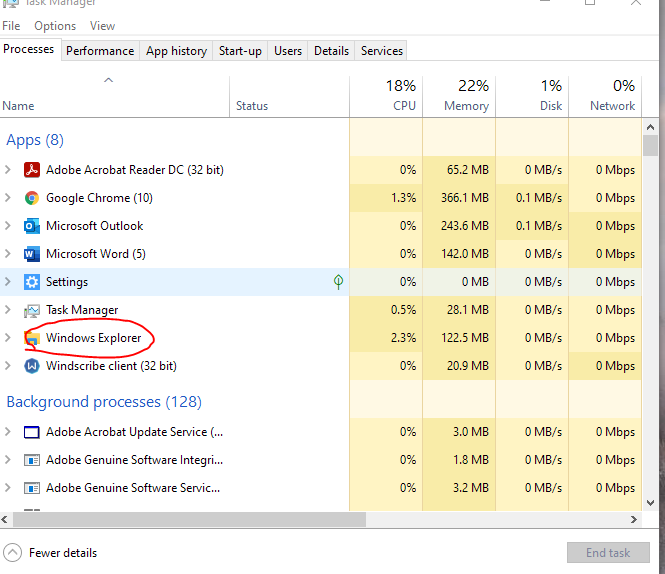
4. Windows explorer doesn't load on startup. There's a process called windows explorer that should launch automatically upon windows startup. Its the process that allows you to open folders/ navigate through directories etc. Once fences is installed windows explorer doesn't start automatically as it should

Reply #3 Top

See windows explorer process circled below - this doesn't launch automatically upon startup when fences is installed

Reply #4 Top

Yes, I know Windows Explorer suppose to load on startup.

Need to know if you have try purge and reinstall steps as mentioned here? https://forums.stardock.com/486084/fences-support-faq#reinstalling. If not, please try it. Just make sure to re-download the latest version from your account. Reboot after the purged. Reinstall in its default directory and Reboot again after the installation. Retest it. Report back here.

Thank you,

Basj,
Stardock Community Assistant

Reply #5 Top

Hi,


I have already tried the purge and reinstall several times and it hasn't solved the issue

Reply #6 Top

Please try the following:

For Win8/10 Users: Open the Start Screen, and type 'cmd'. Right-click on the search result and select 'Run as administrator' from below

The above command should assist with replacing any damaged or problematic system files. Please note, however, since it may require restoring certain files, this process can take some time and you will need to be patient until it has completed.


Try that and report back.


Thank you,

Basj,
Stardock Community Assistant

Reply #7 Top

Hi,

 I have tried what has been suggested above but this still hasn't resolved the issue,


Kelvin

Reply #8 Top

Hello,

Please try cleanboot and see if there is conflicting application with Fences :  https://forums.stardock.com/486084/fences-support-faq#cleanboot

Try that and report back. Also need information on your Antivirus/security setups.

Thank you,

Basj,
Stardock Community Assistant

Reply #9 Top

Hi,


Fences starts correctly when I sign into the new user account created. I tried performing a clean boot on my user account to see if I could discover any programs interfering and preventing fences from starting automatically on startup but was unsuccessful. 
I disables all programs at startup bar fences and stopped all services except Microsoft services and restarted and logged into my usual account but fences would not start automatically

Reply #10 Top

Possible of corrupted use profile. Try the Sfc /scannow and see if that help.

Please try the following:

-For Win8/10 Users: Open the Start Screen, and type 'cmd'. Right-click on the search result and select 'Run as administrator' from below.

-Type: sfc /scannow

-Wait for the scan to complete (this can take several minutes)

Some help on how this looks should you need it:

https://support.microsoft.com/en-us/help/929833/use-the-system-file-checker-tool-to-repair-missing-or-corrupted-system

If the SFC finds errors, but cannot fix them, please also run the following command in the same command prompt window:

dism.exe /online /Cleanup-Image /RestoreHealth

Some help on how this looks should you need it:

https://www.windowscentral.com/how-use-dism-command-line-utility-repair-windows-10-image

The above command should assist with replacing any damaged or problematic system files. Please note, however, since it may require restoring certain files, this process can take some time and you will need to be patient until it has completed.

Please let me know whether this resolves your problem or if you have any additional questions.

Thank you,


Basj,
Stardock Community Assistant