Icons leaving fences

Hi - I've noticed that when I open a desktop file (not a shortcut), the file does not return to the fence after it has been closed. Typically, this is a Word document, which is then returned to the Desktop when the file is closed.

Any suggestions?

Win10 Pro / Fences 3.0.9.11

4,590 views 5 replies
Reply #1 Top

Hello,

Sorry to hear you are having issues.

Try right- click on your desktop to view

then you'll see in the drop down Lock fences

click on that so there is a check mark there .

Now if you need to make changes to fences

later then just un-check lock fences .


AzDude
Stardock Community Assistant

Reply #2 Top

I've set "Lock Fences" and files are still "jumping" out of my fences - incidentally, I can manually move a file from a fence, which I didn't expect to be able to do

Reply #3 Top

Hello,
Sorry to hear you are having issues.

Need more information.

1) Windows 10 version. Please use Winver.exe for full version numbers.

2) When you said open Word documents. Did you edit and save it. Hence it will have the same name but different size and date, maybe the Fences rules was set to move all new files/icons onto desktop. Please check.


Basj,
Stardock Community Assistant.

Reply #4 Top

Win10 version is 1903 build 18362.657

The rule in settings is for new icones to go to the general Desktop

I think you've twigged the issue - a desktop shortcut to a file stays within the fence it was originally held in, but a desktop file is given new file attributes when it is saved, so Fences is treating it as a new icon and sticking it on the General Desktop

One for the Developers - if the icon existed on the desktop and only the Date Modified and file size attributes have changed, then leave it where it was

Thanks for the help - have a virtual beer on me:beer:  


Reply #5 Top

Hello,

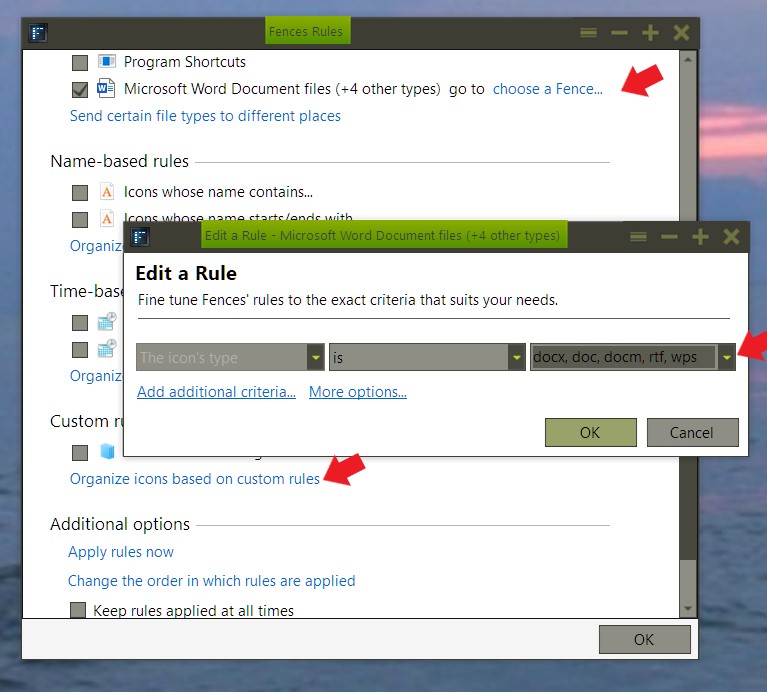
I think you can set a custom rule so that all word files stay in a fence

1) Right click on Fences 3 bar menu -> Organize -> Manage sorting rules -> Fences rules -> Organize icons based on custom rules -> edit a rule -> set to words -> click "OK" -> and the new rule will be added above. Just need to tick that and choose which fence these word file need to go.

Thank you,

Basj
Stardock Community Assistant.