Lost a Fence when dragging it on desktop

Lost it when I dragged it down to the bottom of the screen. How do I get it back, or is it gone for good?

After doing my initial set-up of Fences, I had the typical 3 Fences on my desktop set up by the program itself. The largest one, "Files" disappeared from view when I dragged it down to the bottom of the desktop. I guess I didn't stop dragging in time, and it was gone. Is it gone forever? Can I easily just re-create that one file?

13,825 views 13 replies
Reply #1 Top

Hello,
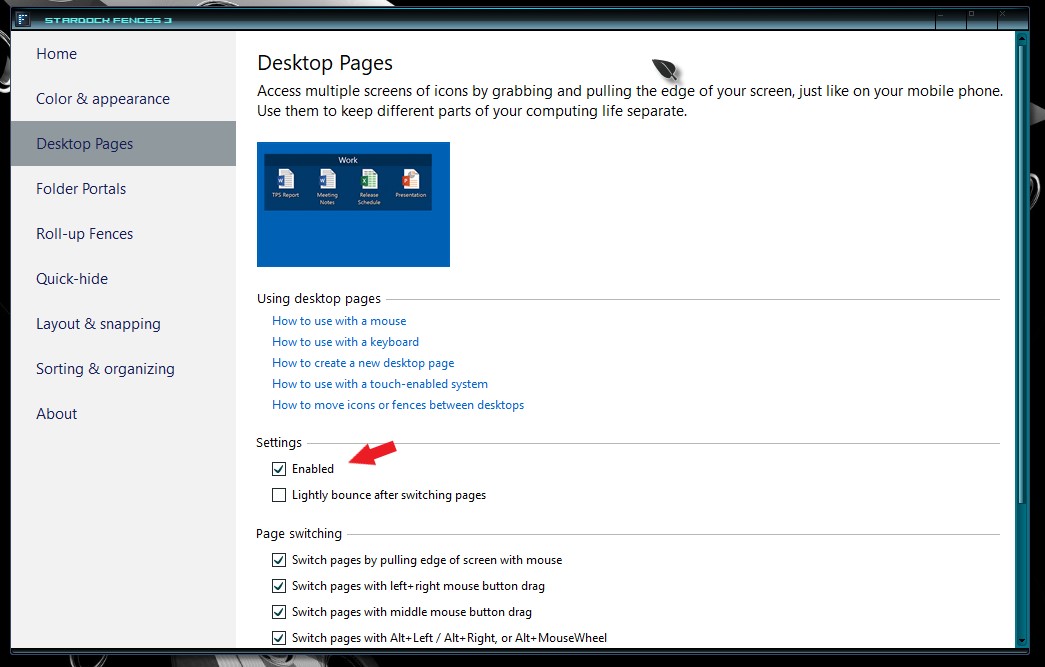
Sorry to hear you are having issues. But most probably that fence just accidentally moved to another Fences Desktop page. You can bring it back just by using the Desktop pages control or totally disable Desktop pages.

Basj,
Stardock Community Assistant.

Reply #2 Top

Thank you for your reply. I had already looked for the missing Fence inside another page, but it is not there. I think that, somehow, I mistakenly deleted it. I'll just build another one, and move all my Documents into it. Thanks again!

Reply #3 Top

Great, glad you solve it.

Thank you for reporting back.

Basj
Stardock Community Assistant.

Reply #4 Top

To continue this thread.... now I find a real problem. Having "lost" the "Files and Documents" Fence, I tried to create a new Fence and drag and drop items from my Windows Explorer list of files. But it won't let me. It says, "you are attempting to move things already on the Desktop to the Desktop." And that raises a second question... If I did, in fact, inadvertently delete the original "Files and Documents" Fence, why didn't all of those icons go back and repopulate my visible Desktop? Where are those icons? And why can't I move them back to the Desktop from my Windows Explorer?  HELP, please!

Reply #5 Top

Hello,

That show that the icons is still on the desktop. Have you tried disable the pages and see if all the fences move back to main desktop page?

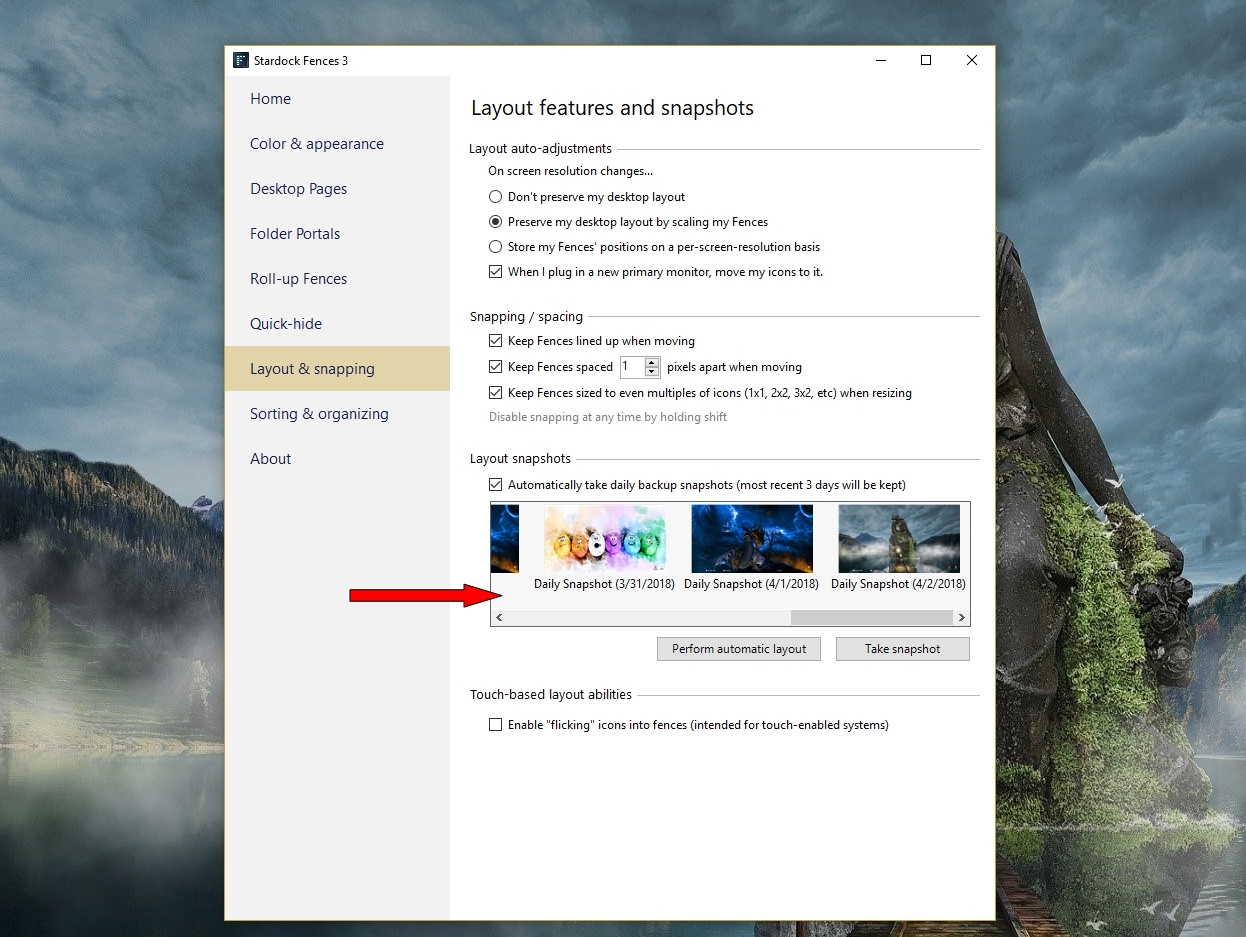
Sometimes changing the Win10 monitor scaling back to 100% helps and restore some older snapshot might bring back that fences.

Thank you,

Basj
Stardock Community Assistant.

Reply #6 Top

Have you checked the actual "desktop" folder/directory in C:\Users\puter\Desktop to see if the files exist there?


Changing puter for your name, of course.

Reply #7 Top

Thanks for your reply. Yes, I unchecked the "enable" of Desktop Pages, and NOTHING happened. (Other than it disabled the pages.) So now what?

Reply #8 Top

Thanks for the reply. Yes, I did check to make sure the files were still listed in the "items from my Windows Explorer list of files." They are. And I have access to them from Windows Explorer. The icons just never made it back to the viewable Desktop. Crazy making.

Reply #10 Top

Call me Capt. Obvious, but are there ANY icons on the desktop?


Have you got quick hide enabled?


If so, double click the desktop. then maybe you'll see the icons. If so, you can then make the fence and drag them into it.

Reply #11 Top

Hi, RND. Thanks for the follow-up. Yes, of the 3 initial automatic Fences created, only the "Files & Documents" disappeared. The "Folders" and "Programs" Fences have stayed and are still working just fine.

Reply #12 Top

Scarborough here (Ian)

The issue with 'disappearing' fences (I had 7 or 8, now only 2?) is not new and there does not appear a solution. I've been patient with Fences because I am a long time user of Stardock's desktop candy and member here. Mostly, it hasn't pissed me off even though I couldn't help noticing that Fences is a big pain to a lot of users. I'm using the number of posts here and sometimes aggression shown by users for that opinion. Not something we would see a lot of 'back-in-the-day'.

So, does anyone have any idea how to get back the missing fences... I have tried a number of changes within configuration but there is nothing there to help.

One other point, and I suspect due to Microsoft not giving a s..., the layout and snapping function is problematic. With my monitors (LCD TV's actually - Man Cave and all that) I have not had a problem with them ever with any of the eye candy software I use. I think the problem lies with the crap 'Generic PnP' drivers MS uses.

'Layout' doesn’t capture both monitors. The second one shows up (if I'm lucky) as a black square blotch on the side (yes they are different resolutions). Now I noticed that after moving fences to the second monitor on the next reboot they all came back to the primary monitor and looked like a battle scene out of Game of Thrones! Using the 'Snapping' function (restore layout) does, well, absolutely nothing. Who'd have thought?

Anyway, someone may spot this and have a solution, cough, cough. Before we get old? Doubtful.

Kind regards from the other side of the world

Ian (Scarborough)

Perth, W.A.